USB Bluetooth Adapters: Check the Revision, OS and Device
A USB Bluetooth adapter can add a radio to a supported computer. Choose it for the operating system and devices you actually use; the largest Bluetooth version number does not guarantee the audio feature or controller behavior you want.
By Top10Taobao Editorial · Sources checked November 6, 2026 · US edition
01 / CHECK THE COMPLETE SETUP
Start with the requirement.
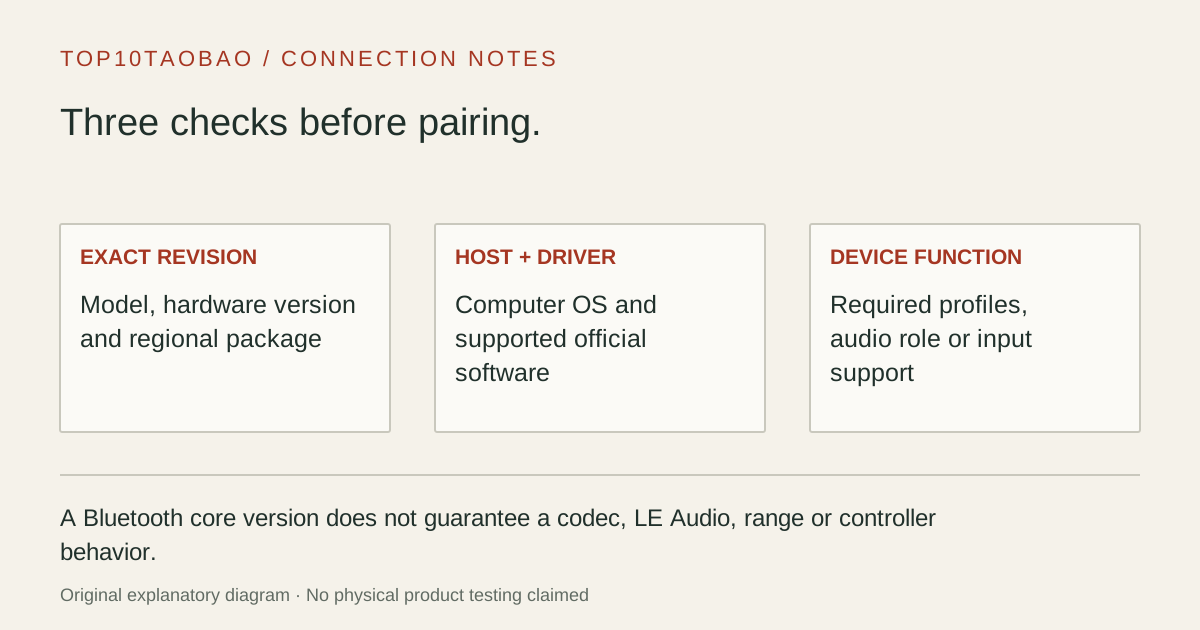
Record the computer OS, the exact peripheral model and its required Bluetooth function. Then match the physical adapter revision to the official driver. A seller page saying UB500 without a hardware version leaves an important question open.
Do not substitute a similar product name or a different regional package. The sources linked under each entry support the named model and its stated conditions.
Original explanatory diagram; not a product photograph or tested wiring configuration.
02 / THE COMPARISON
Read the limit beside the headline.
Scroll the table horizontally on a small screen. Limits are manufacturer claims, not measurements. Ask the maker about a condition that is decisive and still unknown.
Exact models and documented restrictions; prices and live stock omitted
Confirm that the peripheral actually uses Bluetooth rather than a proprietary USB receiver. Then check the computer OS and driver route. Adding a Bluetooth radio will not recreate a lost receiver for a device that requires its own radio system.
A headset for listening and calls
Ask about the exact playback and microphone profiles on your OS. Pairing, stereo playback and two-way call audio are separate checks. A Bluetooth version or range number cannot guarantee the sound and microphone behavior of a meeting app.
A Linux workstation
Begin with the exact USB adapter identity, distribution and kernel. ASUS supplies Linux downloads for this named model, but that is a starting point for checking support, not proof that every current kernel works without installation.
05 / EVIDENCE & SCOPE
What the comparison establishes.
This is a three-model comparison of documented platform and revision choices. We have not measured range, latency, headset quality, simultaneous-device capacity or controller reliability. Bluetooth Classic, Bluetooth LE and LE Audio are not interchangeable feature promises. None of these selections establishes a specific audio codec, Auracast, BIOS keyboard support or compatibility with every game controller.
Each entry has an original fit explanation, an exclusion and an alternative. We selected the models for distinct documented arrangements rather than copying another publication's order. Unknown fields are not filled by estimates, and manufacturer marketing measurements are not relabeled as independent tests.
Treat the hardware version as part of the model name
For UB500, use the US hardware-version selector before downloading a driver or comparing a seller’s offer. This page’s TP-Link entry is the V3 revision supported by the linked 3.0 datasheet. Do not transfer those specifications to V1, another regional package or a listing whose revision is absent.
The same discipline applies to ASUS: USB-BT500, USB-BT500 V2 and USB-BT540 are separate product identities. Keep the package label, OS and support-page model together. An adapter’s appearance is not a reliable revision identifier.
Bluetooth pre-purchase record
Record
Useful detail
Reason
Host
OS version, available USB-A port, permission to install drivers
Physical fit does not establish software support
Adapter
Exact model, hardware version and region
One family name can cover different radios
Peripheral
Exact headset, keyboard, controller or other device
Its supported profiles and pairing method matter
Required function
Playback, microphone, input device, LE data or another documented role
A version number does not define every application
A newer core version is not an audio feature checklist
The Bluetooth SIG’s functionality guidance distinguishes the core version from application and profile support. For a purchase, ask for the needed function by name. Bluetooth LE data support does not, by itself, establish LE Audio, Auracast or a particular headphone codec.
For calls, verify both headphone output and microphone input with the intended OS and app. For a controller, verify that model’s PC Bluetooth mode and the game’s input support. For a keyboard or mouse, confirm whether it can pair over Bluetooth or needs its original proprietary receiver. These are different decisions even when all the devices are described as wireless.
If the headset uses a cable and your problem is the analog jack, compare USB audio adapters instead. Those provide a different audio path and do not add a Bluetooth radio. A USB Wi-Fi adapter is another radio task; it should not be assumed to add Bluetooth unless the exact product says so.
Place the adapter for the desk you actually use
The Bluetooth SIG range explanation identifies radio design and the surrounding environment as important variables. A printed distance is not an office coverage guarantee. Walls, the computer’s position and the other device remain part of the link.
Plugable’s USB-BT5 guidance prefers a front USB 2.0 port. Its longer-range LE modes require compatible devices; they do not promise the same distance for a headset call. Start with a nearby device in clear view, then check the intended seating position. Keep that test separate from a claim about which adapter has the best range.
If a short USB extension is needed for placement, use a supported data connection and check the result at the actual desk. A powered USB hub supplies a USB connection and power; it does not guarantee radio coverage or improve an unsupported profile.
Verify one function at a time after installation
Confirm the model and install the official OS-appropriate driver if required.
Follow the maker’s instructions for replacing an existing Bluetooth adapter; retain a working input method while changing radios.
Put the peripheral into its documented pairing mode and check that the computer sees it.
Test the intended function: typing, controller input, audio playback or microphone input.
Check reconnect after a normal sleep or restart before treating the setup as ready.
A successful pairing is useful evidence of discovery and authentication, not proof that every app feature works. A USB sharing switch also does not establish that Bluetooth pairing state follows a radio between computers. Resolve that exact multi-host workflow before selecting a dongle for it.