3 DisplayLink Docking Stations: Screens and Software
A DisplayLink docking station sends USB graphics to supported displays using host software. That can solve a different problem from a native Thunderbolt dock, but the driver, OS permissions, protected-content limits and charging arrangement become part of the purchase.
By Top10Taobao Editorial · Sources checked November 5, 2026 · US edition
01 / CHECK THE COMPLETE SETUP
Start with the requirement.
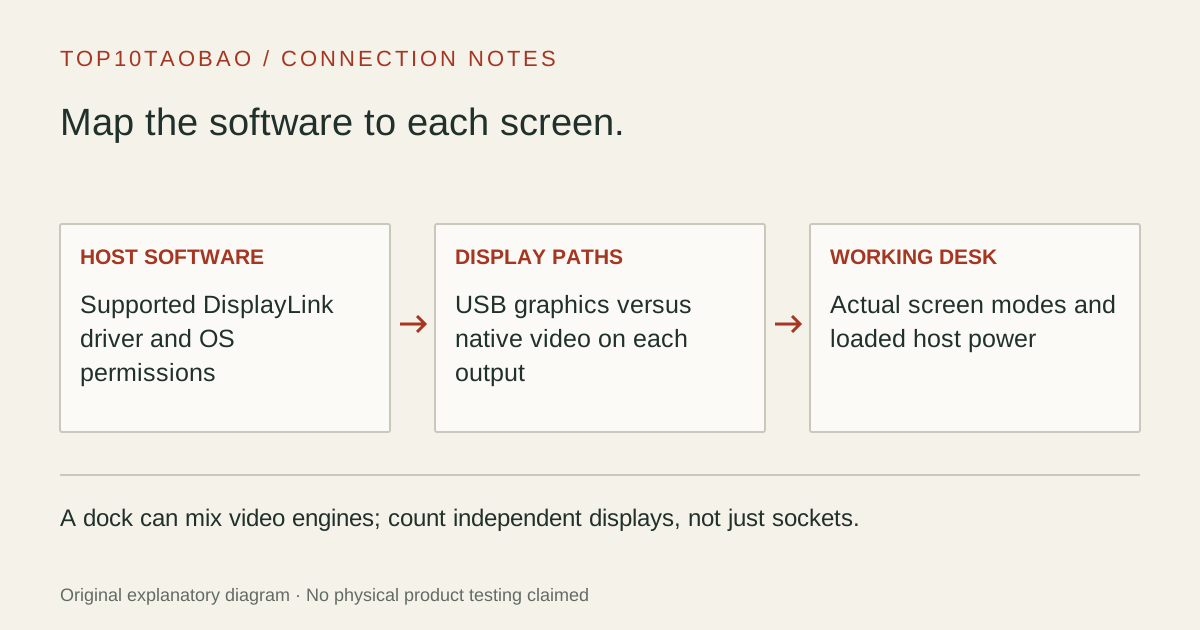
Record the computer and OS, whether software installation is allowed, each monitor’s input and mode, and the laptop power requirement. Trace every screen separately: a dock may combine DisplayLink and native DP Alt Mode outputs rather than use one technology for every socket.
Do not substitute a similar product name or a different regional package. The sources linked under each entry support the named model and its stated conditions.
Original explanatory diagram; not a product photograph or tested wiring configuration.
02 / THE COMPARISON
Read the limit beside the headline.
Scroll the table horizontally on a small screen. Limits are manufacturer claims, not measurements. Ask the maker about a condition that is decisive and still unknown.
Exact models and documented restrictions; prices and live stock omitted
Confirm that IT permits the required DisplayLink software and permissions before purchasing. Hardware that fits the USB port does not override software policy.
USB-A computer plus two office monitors
A documented USB-A-compatible DisplayLink dock can be relevant even when the host has no native USB-C video. Keep its independent power adapter and the computer charger in the wiring plan.
Three or four displays plus many USB devices
Map each dock output to its native or USB-graphics path, then check the exact OS and power budget. Do not transfer a Windows display table to macOS or treat a maximum no-load PD figure as the loaded value.
05 / EVIDENCE & SCOPE
What the comparison establishes.
This is a focused three-arrangement comparison, not a market-wide best-dock ranking. We have not measured latency, CPU use, USB throughput, video playback, screen capture or sleep recovery. Driver-dependent compatibility must be checked for the exact current OS. A manufacturer-supported display ceiling is not a verified result on your computer. Discontinued UD-6950H and Silicon Motion-based UD-768PDZ were excluded from this DisplayLink new-purchase shortlist.
Each entry has an original fit explanation, an exclusion and an alternative. We selected the models for distinct documented arrangements rather than copying another publication's order. Unknown fields are not filled by estimates, and manufacturer marketing measurements are not relabeled as independent tests.
Identify the video engine before choosing software
Dock technologies are different purchase paths
Path
What must be established
Do not infer
Native USB-C / Thunderbolt video
Host GPU streams, dock topology and OS display limits
DisplayLink software adds capability to a native-only dock
DisplayLink USB graphics
DisplayLink hardware, supported software and required permissions
Every USB-C dock contains DisplayLink
Silicon Motion USB graphics
Its own supported hardware and InstantView software path
DisplayLink Manager is the interchangeable driver
Hybrid dock
Each output’s actual video engine and requirements
Every socket has the same limits
The connector and the video engine are separate facts. Use the native Thunderbolt/USB4 dock comparison when you want that host path. A DisplayLink dock can be useful for office windows on a supported computer, but it is not selected here as a low-latency gaming, color-validation or protected-media solution.
Include the software and privacy permission in the buying decision
On macOS, the reviewed Plugable documentation requires DisplayLink Manager installation and screen-recording permission so it can transmit the desktop to the USB-connected displays. A managed computer may prevent either step. Confirm permission with the computer owner or IT policy before buying; do not plan to bypass a restriction.
The manufacturer also documents protected-content restrictions. For the charging Plugable model, HDCP content on macOS may be blocked across displays while the dock is connected. A successful spreadsheet display therefore does not prove that a streaming service, video editor, game or login-screen workflow will work as required. List those applications in your compatibility request.
Dell’s macOS support note directs macOS DisplayLink driver support to DisplayLink. Its presence is not acceptance of every UD22 output combination on every Mac. For an unsupported or unlisted OS, keep compatibility unconfirmed instead of assuming that a newer version works identically.
Read the UD22 output map and power table together
Dell’s model-specific manual separates its two USB-graphics DP outputs from the native HDMI and USB-C MFDP pair when the driver is installed. The native pair shares host video bandwidth; the four-screen ceiling depends on the listed host compression and display timing conditions. The behavior without the driver has a different output map. Use the correct table for the software state you will actually run.
Its power delivery is also adaptive. The manual’s loading examples show 75W or 60W under specified combinations of screens, USB devices and Ethernet, below the 96W maximum. These are manufacturer examples, not measurements we performed or a prediction for every desk. Compare a laptop’s required power against a realistic loaded arrangement and confirm a separate charger option if needed.