THE BUYING DESK / PUBLIC-SOURCE SHORTLIST

4 Thunderbolt & USB4 Docks: Check the Whole Desk

Choose a Thunderbolt 4 or USB4 dock for a complete desk, not for its socket count. Start with the computer’s supported displays, the monitor inputs and the laptop’s power requirement. These four source-based comparisons separate native Thunderbolt display paths, an MST-based USB4 option and the adapters each desk can still need.

By Top10Taobao Editorial · Sources checked November 5, 2026 · US edition

01 / CHECK THE COMPLETE SETUP

Start with the requirement.

Record the exact computer, OS, port and external-display limit. List each monitor’s input, resolution and refresh rate, then the peripherals that must remain connected. A powered desk dock is different from a bus-powered travel hub: count the supply, host cable and display adapters as part of the purchase. Verify the dock’s fallback behavior on any second computer before buying one dock for both.

Do not substitute a similar product name or a different regional package. The sources linked under each entry support the named model and its stated conditions.

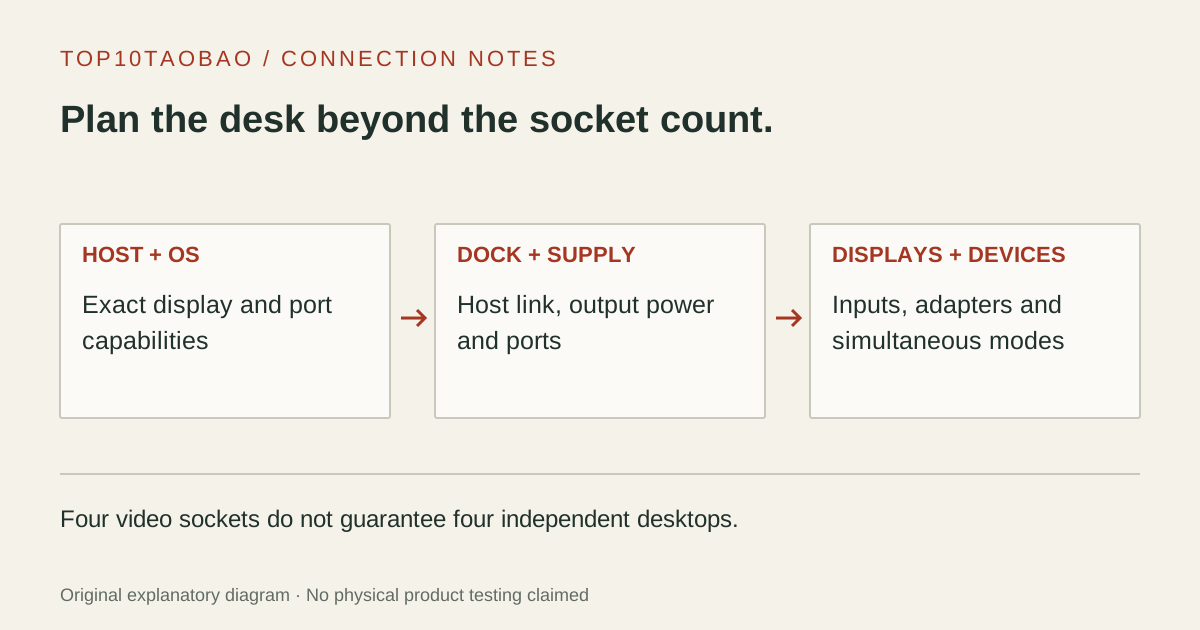
A powered docking setup is checked from the host and OS through the dock and supply to the exact display and peripheral connections.
Original explanatory diagram; not a product photograph or tested wiring configuration.

02 / THE COMPARISON

Read the limit beside the headline.

Scroll the table horizontally on a small screen. Limits are manufacturer claims, not measurements. Ask the maker about a condition that is decisive and still unknown.

Exact models and documented restrictions; prices and live stock omitted
ModelHost and fallback scopeVideo arrangementHost charging ceilingNetwork and cardsSupply, host cable and extras
01CalDigit Thunderbolt Station 4TS4Thunderbolt 4 / 3 and USB4; USB-C fallback has feature limitsDisplayPort 1.4 plus downstream Thunderbolt display paths; host-limited dual displaysUp to 98W to host2.5GbE needs a supported PCIe path; SD + microSD UHS-II230W supply and 0.8m Thunderbolt 4 lead in manual; HDMI may need adapters
02Plugable Thunderbolt 4 16-in-1 DockTBT4-UDZThunderbolt 4 / USB4; older Thunderbolt and USB-C video modes differ2 HDMI + 2 DisplayPort; up to four 4K60 Windows displays under stated MST/DSC conditions98W certified; marketed as up to 100W2.5GbE subject to host/OS conditions; SD and microSDPower supply, power cord, stand and 1m Thunderbolt 4 cable listed
03Kensington SD5780TK33040NA, reviewed regional SKUThunderbolt 4; Thunderbolt 3/USB4 support; USB-C Alt Mode fallback is narrowerHDMI plus downstream Thunderbolt; conditional dual 4K60; USB-C fallback single 4K60Up to 96W to host2.5GbE; SD UHS-IIAC adapter included in maker manual; confirm regional host cable and display adapters
04Plugable USB4 Dual-HDMI DockUD-4VPDUSB4 40Gbps; Windows USB4/Thunderbolt 4 recommended by maker2 HDMI; conditional dual 4K120 using MST; macOS restricted and not recommendedUp to 100W to host2.5GbE; SD and microSD170W external supply and 1m USB4 40Gbps host cable listed

03 / THE EXACT MODELS

Choose the fit.
Keep the restriction in view.

01

CalDigit Thunderbolt Station 4

Exact model: TS4

Consider it for

A desk that uses a DisplayPort screen, downstream Thunderbolt devices and UHS-II media. The manual distinguishes the host port from the downstream ports and lists the supplied power unit and host cable. That layout can be a better fit than buying a dock with several HDMI outputs when the existing screen is DisplayPort.

Skip it when

Do not assume ordinary USB-C fallback preserves its Ethernet function: CalDigit requires a supported PCIe path for that controller. Dual-display capability also depends on the host. For HDMI screens, include appropriate adapters; the manual requires an active adapter when converting its DisplayPort output. Its 230W supply rating is not 230W laptop charging.

Also compare: SD5780T adds an integrated HDMI connection when that is more useful than the TS4 layout.

02

Plugable Thunderbolt 4 16-in-1 Dock

Exact model: TBT4-UDZ

Consider it for

A supported Windows desk needing several conventional HDMI or DisplayPort connections. Plugable documents the host stream and MST/DSC requirements instead of making the four connectors a universal four-desktop claim. Compare its exact video-mode table to the computer before choosing it for three or four screens.

Skip it when

Four sockets do not provide four independent Mac displays. The maker’s Mac count varies with the exact chip, model, lid state and OS; base M1/M2 limits remain relevant. Its front Thunderbolt port is the host connection, while the rear USB-C accessory port is not a substitute. Preserve both the 100W marketing and 98W certification distinction when budgeting power.

Also compare: Compare TS4 when downstream Thunderbolt connections and a DisplayPort-led desk are the priority.

03

Kensington SD5780T

Exact model: K33040NA, reviewed regional SKU

Consider it for

A powered desk whose monitor inputs benefit from one integrated HDMI socket while other devices use the downstream Thunderbolt ports. Kensington identifies the K33040NA part and separately documents the SD slot, network rate and USB-C fallback. Use that exact model record, not the similar SD5700T name, when checking a seller’s package.

Skip it when

The supported external-display count still belongs to the computer and operating mode. A plain USB-C Alt Mode connection is not the same two-display path as a capable Thunderbolt host. Confirm a current Mac model and any higher-resolution requirement with Kensington, and do not treat the dock’s maximum-resolution headline as a simultaneous mode for all screens.

Also compare: TS4 offers an integrated DisplayPort connection and separate SD/microSD slots for a different desk layout.

04

Plugable USB4 Dual-HDMI Dock

Exact model: UD-4VPD

Consider it for

A documented Windows USB4 desk with two HDMI monitors and a reason to check higher-refresh-rate modes. Its useful distinction is the stated USB4/MST display architecture, not a claim that it is a Thunderbolt-certified dock. The included supply and host cable are listed separately from the laptop charging ceiling.

Skip it when

Plugable does not recommend this model for Apple systems: its MST split does not provide two independent macOS displays, and the maker documents a single-display 4K60 restriction there. Even on Windows, dual 4K120 depends on the specified host/display mode. Do not use the two HDMI labels as evidence that a basic data-only USB-C port can output video.

Also compare: TBT4-UDZ is the separate comparison when the required supported configuration includes Mac or more display connectors.
04 / PUT IT TO WORK

Different tasks change the shortlist.

A DisplayPort screen, Thunderbolt storage and camera cards

Start with the physical route through TS4, then check host display support and the PCIe-dependent Ethernet requirement. Count an active adapter if an HDMI screen is substituted later; a spare USB-C data socket is not automatically a video output.

Several Windows desktops from one host cable

Compare TBT4-UDZ’s exact MST/DSC modes to the host GPU and port. Four display connectors alone do not answer whether the computer can supply four independent streams at the selected modes.

One dock shared between a Windows laptop and a Mac

Create two separate compatibility rows. A mode that works on Windows can become a single display or mirror on macOS. UD-4VPD’s documented Mac restriction is a reason to exclude it from this shared-desk requirement before comparing refresh-rate headlines.

05 / EVIDENCE & SCOPE

What the comparison establishes.

These four exact models were selected for distinct documented desk arrangements, not ranked by measured performance. We have not tested throughput, heat, display reliability or a complete host/dock/monitor combination. Manufacturer maximum modes and power are conditional. Exact hardware revision, regional package, GPU, OS and cables must match. The comparison is not an exhaustive market list and does not promise current stock or prices.

Each entry has an original fit explanation, an exclusion and an alternative. We selected the models for distinct documented arrangements rather than copying another publication's order. Unknown fields are not filled by estimates, and manufacturer marketing measurements are not relabeled as independent tests.

Read our editorial method and commercial disclosures. For the complete host path, see the buying guides and the USB-C hub comparison.

SCENARIO WORKSHEET

Use one complete row for each computer and monitor setup

A dock purchase record for the whole desk
RecordIncludeReason to stop
ComputerExact model, port, OS, native external-display limitOnly “USB-C compatible” is established
ScreensInputs, number of independent desktops, simultaneous resolution/refreshConnector count is being used as a display-count guarantee
PowerLaptop requirement, dock host output, supplied PSU and host cableThe wall-supply wattage is being substituted for laptop output
Remaining devicesThunderbolt versus USB data, network path, card slots and audioA needed downstream function is inferred from the upstream label

For a two-computer desk, fill the record twice. A dock can remain physically connected while a different host negotiates a narrower mode. That is especially important when mixing a Thunderbolt laptop with a plain USB-C computer. The USB4 and Thunderbolt comparison explains the protocol distinction; this page applies it to named dock layouts.

A 140W or higher laptop charging requirement is also a separate decision from connecting its screens. None of this page’s 96–100W-class ceilings establishes full-power operation for every workstation. Plan the laptop maker’s supported charging method for the intended workload rather than assuming the dock replaces its supply in all circumstances.

Check the costly exceptions before ordering extra cables

CalDigit’s TS4 Ethernet guidance is a useful example of a hidden fallback condition: on Windows, ordinary USB 3 Type-C does not supply the PCIe path its Ethernet controller needs. A host connection that activates some ports can still leave a needed function unavailable. Record that exception before comparing the total number of sockets.

For displays, MST-based splitting, native Thunderbolt display paths and a DisplayLink software path are different arrangements. UD-4VPD’s documented MST and macOS limits remain beside its two-HDMI claim. No driver download can be assumed to add a hardware feature or supported independent display that the computer does not provide. Use the multi-monitor worksheet for the complete simultaneous mode.

Count display adapters, monitor cables and the correct host cable along with the dock. TS4’s DisplayPort-to-HDMI path requires an active adapter according to its manual; the included host lead does not supply every monitor connection. For TBT4-UDZ, use the labeled front host port, not its rear accessory USB-C port. Those are wiring requirements, not measurements of reliability.

If the desk needs only Ethernet or a different card slot, compare a dedicated network adapter or a card reader before buying a full powered dock. The hub-versus-dock guide covers that narrower decision. Once a supported setup is connected, the failure-isolation guide keeps troubleshooting separate from a new purchase.

Continue with the complete desk or storage path

A one-host dock does not automatically switch two computers. Plan USB-C KVM and docking architectures before adding a switch, and compare the complete dual-monitor KVM inputs if both computers will share the screens.

Continue with the complete desk or storage path

If the display plan depends on USB graphics software, compare DisplayLink docking stations and their driver restrictions. For a direct single screen, compare USB-C to HDMI adapters or USB-C to DisplayPort connections.