BUYING GUIDE / CONNECTION NOTES
Multi-Monitor Docks: Check Five Conditions
Two connectors are a port count. Two independent desktops at your chosen resolution are a complete-system capability. Check those as separate questions.
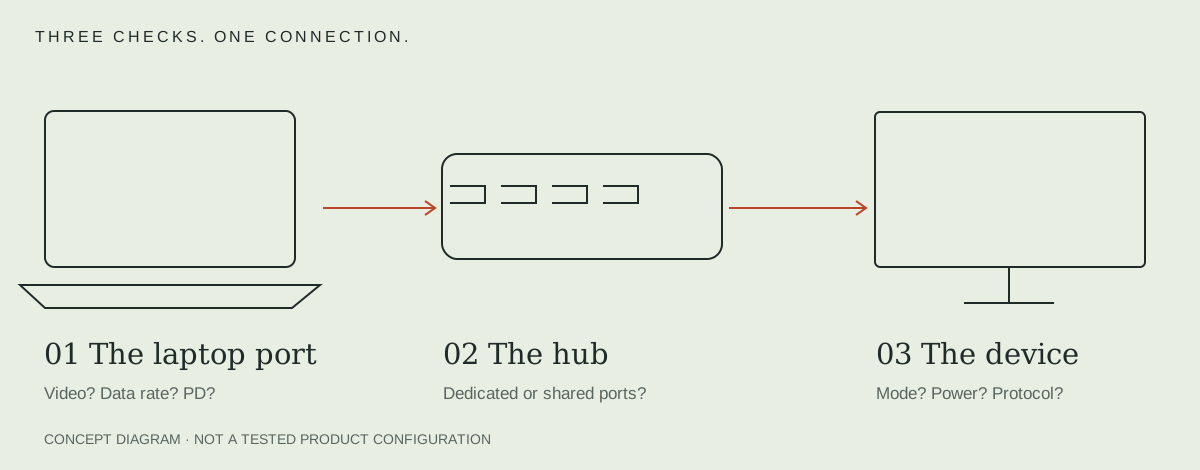
Check these five conditions together
- Host model: exact processor and laptop variant, not just a product-family name.
- Operating system: its supported display behavior for the selected connection method.
- Display method: native video, MST, Thunderbolt or a software-based solution such as DisplayLink.
- Simultaneous modes: number of independent displays, resolution and refresh rate at that display count.
- Connection path: host port, supplied cable, adapter ports and each monitor input.
A single-screen maximum cannot be multiplied by the number of sockets. Look for a simultaneous-display table, and include the built-in laptop display when the host has an overall active-display limit.
Start with the exact Mac specification
Apple directs users to the specifications for the particular Mac to determine supported displays. Processor variants within one laptop family can differ. Record the resolution and refresh rate along with the count; do not use an old family-wide chart as a current guarantee.
For a concrete accessory example, CalDigit says SOHO's two outputs mirror on macOS, while dual extended displays are a Windows-specific mode. That restriction remains even if the Mac itself can support several external displays through other documented paths.
MST also has host and bandwidth conditions
A Windows label alone does not establish that a USB-C port supplies the required streams or bandwidth. Cable Matters 201331-BLK requires DP Alt Mode and supported MST/DSC configurations for its advertised multi-display arrangements. Its product page explicitly excludes macOS.
If a vendor lists tested GPUs or a particular DSC requirement, ask about your exact machine instead of assuming every newer GPU is covered. A product-specific eligibility note is not a complete description of the protocol standard.
Account for software-based video separately
If a dock uses DisplayLink or another installed video solution, read its own operating-system, driver, permission and content restrictions. Do not treat a software display path as the same thing as the laptop's native display-output capability. Confirm the software is allowed on a managed work computer before buying.
Save the answer and confirm the seller's return terms. The hub shortlist marks specialist display candidates and their restrictions; it does not guarantee a complete configuration.
Compare display methods without calling them interchangeable
| Method | Verify before buying | Keep separate |
|---|---|---|
| Native display output / MST | Host streams, OS behavior, simultaneous modes and DSC conditions | Port count versus independent desktops |
| Thunderbolt / USB4 display path | Host generation and exact accessory support | Link headline versus the computer’s display count |
| DisplayLink software path | Supported OS/software, permissions and application scope | Software output versus native GPU display support |
MST means Multi-Stream Transport; SST carries a single stream. These labels do not override the computer’s supported modes. For DisplayLink on macOS, read the vendor’s current software scope and protected-content restrictions before relying on it for a work or entertainment application.
Write the acceptance result before ordering
A useful target is “two independent external screens at the named mode, with this laptop’s built-in screen active.” After connection, inspect every screen’s actual OS mode. A mirrored desktop or one active screen is a different result, even if all connectors are occupied. Use the post-connection display guide if the documented setup does not appear.
If two computers will share the screens, continue to the dual-monitor KVM wiring comparison.
If USB graphics is part of the plan, compare DisplayLink software, output groups and power conditions.
If a dock DP output must feed HDMI, check the full-size DP-to-HDMI conversion comparison.
For the reverse connector mismatch, use the HDMI-to-DP direction and power comparison.
Sources & scope
Published specifications and standards explain possible capabilities. They do not verify a complete combination of your computer, cable, adapter and peripheral. No physical product test is claimed.