THE BUYING DESK / PUBLIC-SOURCE SHORTLIST

4 Dual-Monitor KVM Switches: Map Every Cable

Two monitor outputs do not tell you whether both computers can supply two independent desktops. Start with the complete path from each computer, then choose between separate video cables and a compatible USB-C host link.

By Top10Taobao Editorial · Sources checked November 5, 2026 · US edition

01 / CHECK THE COMPLETE SETUP

Start with the requirement.

Write down computer A and computer B separately: exact model and OS, two usable display outputs or a supported USB-C video path, monitor inputs, resolution and refresh rate. A desktop graphics card’s HDMI/DP outputs cannot be plugged into a laptop-only USB-C KVM input.

Do not substitute a similar product name or a different regional package. The sources linked under each entry support the named model and its stated conditions.

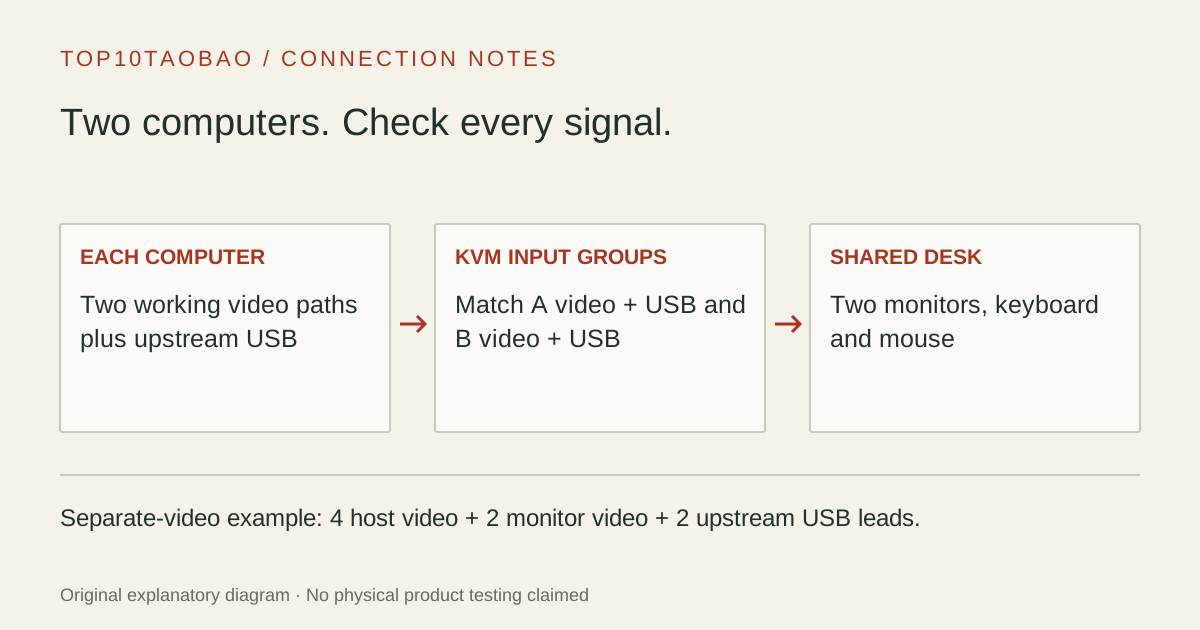
Plan each computer’s two video paths and USB connection before connecting the shared dual monitors
Original explanatory diagram; not a product photograph or tested wiring configuration.

02 / THE COMPARISON

Read the limit beside the headline.

Scroll the table horizontally on a small screen. Limits are manufacturer claims, not measurements. Ask the maker about a condition that is decisive and still unknown.

Exact models and documented restrictions; prices and live stock omitted
ModelConnections from EACH computerShared displays / host restrictionShared USBComputer charging / powerEDID / switchingIncluded essentials / extra cables
01StarTech dual DisplayPortSV231DPDDUA22 × DisplayPort + USB-A-to-B upstream per computer; optional analog audio2 × DisplayPort outputs; up to dual 4K 60Hz with DP 1.2-capable hosts and monitorsUSB 2.0; dedicated wired keyboard/mouse plus two shared peripheral portsNo laptop PD path; included external KVM power adapterPersistent EDID behavior not established here; manual excludes Mac hotkeysKVM + universal supply; budget separately for four host DP, two monitor DP and two upstream USB cables
02TESmart HDMI + DisplayPortHDK202-P23-V2 — HDMI+DP input / US plug1 × HDMI + 1 × DisplayPort + USB per computer; both video links required2 × HDMI outputs; up to 3840×2160 60Hz 4:4:4USB 3.0 / 5Gbps; dedicated keyboard/mouse ports and supported pass-through mode12V external supply included; front USB-A charging is not laptop USB-C PDEDID emulation specified in Display Mode 1; other modes must be checked separatelyTwo KVM cable sets, two DP cables, remote and 12V supply; add suitable HDMI monitor cables
03Cable Matters USB-C KVM2010851 × video-capable USB-C per compatible laptop; manufacturer excludes HDMI/DP-only desktops and ChromebooksHDMI + DisplayPort; dual 4K 60Hz needs supported MST; macOS has one extended desktop, second screen mirrors4 × USB-A; up to 5GbpsNo host PD; optional Micro-B power serves KVM/peripherals, not laptop chargingNo EDID emulation; displays can disconnect/rearrange on switchingTwo USB-C host cables, USB 2.0 extension and RF remote; display cables/each laptop charger separate
04Cable Matters USB-C KVM dock2010751 × DP Alt Mode-capable USB-C per laptop; manufacturer lists this model for two laptops, not desktop PCsHDMI + DisplayPort; conditional dual 4K 60Hz; macOS limited to one extended display or two mirroredTwo 480Mbps keyboard/mouse, three 5Gbps USB-A, one 10Gbps USB-A and one 10Gbps USB-CUp to 100W for one connected laptop or 65W each when two are connected; included 180W supplyPersistent EDID not established in reviewed manual; do not assume window-layout retentionStand, two USB-C cables, RF remote and 180W supply; display/peripheral cables separate

03 / THE EXACT MODELS

Choose the fit.
Keep the restriction in view.

01

StarTech dual DisplayPort

Exact model: SV231DPDDUA2

Consider it for

Two computers with two independently working DisplayPort video paths each, and a desk that mainly shares wired input devices.

Skip it when

You need a one-cable laptop connection, laptop charging or fast shared storage. Do not assume hotkeys work on macOS or promise that inactive displays remain logically connected.

Also compare: TESmart for an HDMI-plus-DisplayPort input mix and documented mode-specific EDID

02

TESmart HDMI + DisplayPort

Exact model: HDK202-P23-V2 — HDMI+DP input / US plug

Consider it for

An HDMI-monitor pair and two computers that each already provide HDMI, DisplayPort and USB.

Skip it when

Either computer has only one usable video output. Check the HDMI+DP variant explicitly; the same page also offers a different HDMI+HDMI connection option.

Also compare: StarTech when both monitors and both computer video paths use DisplayPort

TESmart HDK202-P23-V2: input, output and EDID conditions ↗Manufacturer specification · checked Nov 5, 2026
03

Cable Matters USB-C KVM

Exact model: 201085

Consider it for

Two supported USB-C laptops whose chargers can remain connected, with a confirmed MST dual-display path where independent screens are needed.

Skip it when

You need two independent macOS external desktops, host charging, VRR or EDID persistence. Check the maker’s model-specific firmware note before diagnosing repeat switching failures.

Also compare: Cable Matters 201075 when the additional requirement is documented laptop charging

04

Cable Matters USB-C KVM dock

Exact model: 201075

Consider it for

Two compatible laptops when a shared desk also needs charging and additional peripheral ports.

Skip it when

Either laptop needs more than the two-host 65W budget, or two independent macOS screens are essential. Thunderbolt-compatible wording does not change this dock’s display topology.

Also compare: 201085 if laptop charging is unnecessary and its restrictions fit

04 / PUT IT TO WORK

Different tasks change the shortlist.

Two desktops and two DP monitors

Check both GPU output pairs directly first. The StarTech arrangement needs four host-to-KVM DP links, two KVM-to-monitor links and two USB upstream links: eight signal cables before optional audio or power.

Windows laptop plus Mac laptop

A USB-C MST KVM may extend two Windows desktops yet mirror the Mac’s second external screen. A successful Windows check is not acceptance of the Mac path.

Two laptops that must stay charged

Compare the power budget with both computers attached. The 201075’s single-host 100W figure does not promise 100W to each laptop simultaneously.

05 / EVIDENCE & SCOPE

What the comparison establishes.

These four arrangements were selected for different wiring needs, not as a best-to-worst ranking or an exhaustive market survey. Display figures are conditional manufacturer ceilings. We have not measured switch time, latency, sleep recovery, USB reliability or any complete setup.

Each entry has an original fit explanation, an exclusion and an alternative. We selected the models for distinct documented arrangements rather than copying another publication's order. Unknown fields are not filled by estimates, and manufacturer marketing measurements are not relabeled as independent tests.

Read our editorial method and commercial disclosures. For the complete host path, see the buying guides and the USB-C hub comparison.

SCENARIO WORKSHEET

Count eight signal cables for a conventional two-PC, two-screen desk

For a separate-video KVM, count by endpoints rather than by the word “dual.” A complete conventional setup has four video cables from the computers, two video cables to the monitors and one upstream USB cable from each computer. The keyboard, mouse, audio and power leads are additional. A bundle may provide some of these; it does not eliminate the connections.

Two-host wiring worksheet
SegmentQuantityCheck before ordering
Computer A → KVM2 video + 1 USBA must drive two independent screens at the required modes
Computer B → KVM2 video + 1 USBRepeat with B; do not inherit A’s GPU capability
KVM → monitors2 videoMatch output sockets to actual display inputs
USB-C alternative1 host cable per laptopOnly for the exact USB-C KVM’s supported host and display architecture

A normal HDMI splitter duplicates one video signal. It does not create the missing second desktop. Converting between HDMI and DisplayPort also requires checking the direction and supported mode; a connector-shaped adapter is not enough.

Separate Mac display support from EDID behavior

First confirm the exact Mac model’s display count with Apple’s model-specific display guidance. Then check how this KVM receives those streams. Two cables from two genuinely supported outputs and two outputs derived from one MST connection are different arrangements. The reviewed Cable Matters laptop models explicitly limit macOS to one extended display.

EDID describes display identification. Keeping that information available while a computer is inactive may reduce re-detection and rearranged windows, but it does not guarantee every application layout or sleep/wake cycle. The TESmart claim is tied to Display Mode 1; the 201085 explicitly has no EDID emulation. An unstated field stays unconfirmed.

For the StarTech model, the manual’s macOS hotkey exclusion is separate from basic video and USB operation. Use its physical selection control when the documented keyboard command is unavailable. Do not generalize a Windows shortcut to every OS.

Check each host before testing repeated switching

  1. Prove each computer can drive the two monitors directly at the target resolution and refresh rate. Save each machine’s known-working arrangement.
  2. Connect the exact input group for one computer and verify video, keyboard and mouse before adding the second host. Follow the model’s installation sequence.
  3. Confirm extended versus mirrored mode on both computers, then repeat switching and sleep/wake checks with ordinary work windows.
  4. Check webcam, headset and USB storage separately. Safely eject and finish transfers before moving a drive’s USB ownership to the other computer.
  5. If the desk fails only after adding an adapter or dock, isolate that segment. Record OS, GPU driver, cable and KVM firmware versions before contacting the maker.

No measured switching-speed or gaming-latency claim is made here. If high-refresh gaming, VRR or persistent off-host capture is decisive, obtain exact written support for that use instead of extrapolating from 4K 60Hz office operation.

Choose an architecture before a larger port count

Use the KVM, USB switch and dock decision guide if the device category is still unclear. Use the USB-C KVM and docking worksheet for charging and one-cable laptop planning, and the multi-monitor host checklist to establish the display path before choosing a product.

Continue with the complete desk or storage path

If video can stay on separate monitor inputs and only USB devices need to change ownership, compare data-only USB sharing switches. To duplicate or select HDMI sources without USB switching, use the HDMI routing guide.