BUYING GUIDE / CONNECTION NOTES
USB-C Cables: Check Power, Data and Video
A cable that charges your laptop is not automatically a high-speed SSD cable or the right cable for a USB-C display. Check each job separately.
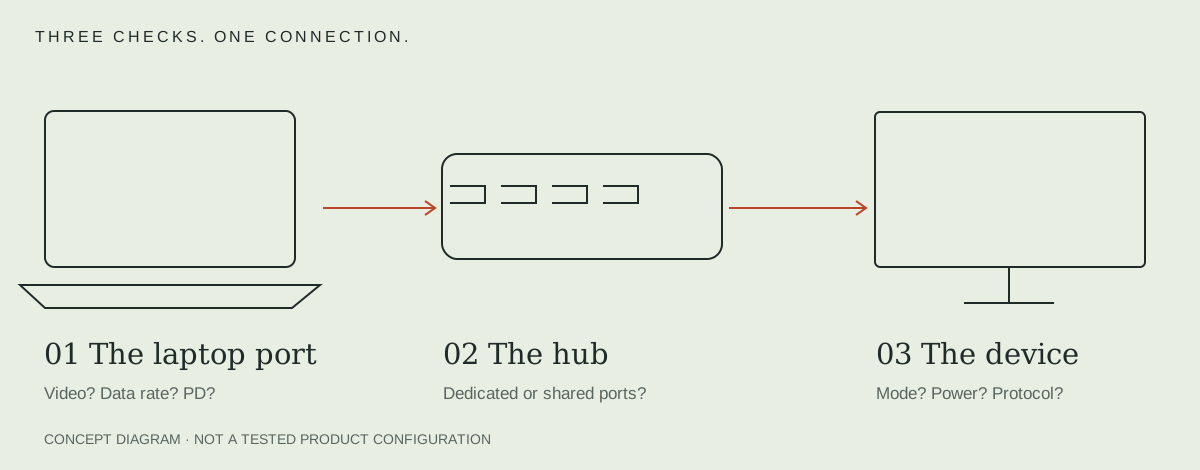
Write down the job the cable must do
Separate charging, USB data and display functions. For a charging cable, record the required power and the charger/device combination. For storage, record the explicit USB link rate. For a display or dock, follow that device's documented cable requirement, including Thunderbolt or USB4 where specified.
A cable marked with a high wattage does not, on that evidence alone, establish a high data rate. Conversely, a high-speed data label does not establish that the cable supports every charging mode a laptop can request.
Read certified claims in their own scope
USB-IF provides separate and combined performance/power logos. A combined label expresses both claims; read both parts. A rating is a supported ceiling for that cable, not a command that forces the attached device to draw that power.
Do not infer USB-IF certification from the word ‘USB-C,’ a generic symbol or a seller's appearance alone. Where certification affects your choice, check the maker's product-specific documentation and relevant certification record.
Check display direction and device requirements
For USB-C-to-HDMI or DisplayPort cables, the conversion direction matters. A cable sold to connect a USB-C video source to an HDMI display cannot be presumed to connect an HDMI source to a USB-C-only monitor. Check the actual direction stated by the maker.
For a detachable dock host cable, use the supplied cable first. If a replacement is needed, match the dock maker's required protocol, power, length and any active-cable restrictions. The same connector is not sufficient evidence of equivalence.
A five-line purchase checklist
- Exact devices at both ends and the intended direction.
- Required charging mode and a suitable cable power rating.
- Explicit data rate for the storage or dock connection.
- Documented display/protocol capability where video is needed.
- Length and routing that work without strain or an unverified extension.
If one line is missing from the listing, ask before buying. For a hub with an integrated host cable, check whether its PD input needs a separate charger cable; the two cables perform different jobs.
The power-profile guide explains how a suitable cable is only one part of a charging arrangement.
Keep power, data and video in separate columns
| Claim | What it can establish | What it does not establish |
|---|---|---|
| 60W / 240W certified power marking | The stated cable power category under USB-IF rules | Data rate or video capability |
| 5/10/20/40/80Gbps statement | The stated supported data capability | Sustained file-copy speed |
| USB 2.0 Type-C | A Type-C cable with the USB 2.0 signal scope | USB 3.2/USB4 or Alt-Mode video conductors |
| E-marker reading | Marker identity/advertised fields the reader decodes | Electrical compliance of every conductor |
USB-IF’s certified-cable marking policy separates power and performance. Older 100W-labeled products exist; confirm the exact current product specification rather than treating every label style as the same generation or proof of certification.
Use a tester only for a defined question
A high power rating does not mean a high data rate, and a charging-only task does not establish video. If the cable is unidentified, use the cable tester guide to distinguish a pin map, marker declaration and actual electrical test. A phone charging successfully is only evidence for that session.
For 100W versus 240W decisions, match the device and supply’s profiles and the exact cable requirements. For a long or active cable, confirm that specific product’s supported protocol and direction; there is no single safe maximum length covering all USB-C capabilities.
Apply this checklist to the exact cable capability comparison.
For a display cable ending at DisplayPort, compare the DisplayPort cable and adapter arrangements.
Sources & scope
Published specifications and standards explain possible capabilities. They do not verify a complete combination of your computer, cable, adapter and peripheral. No physical product test is claimed.