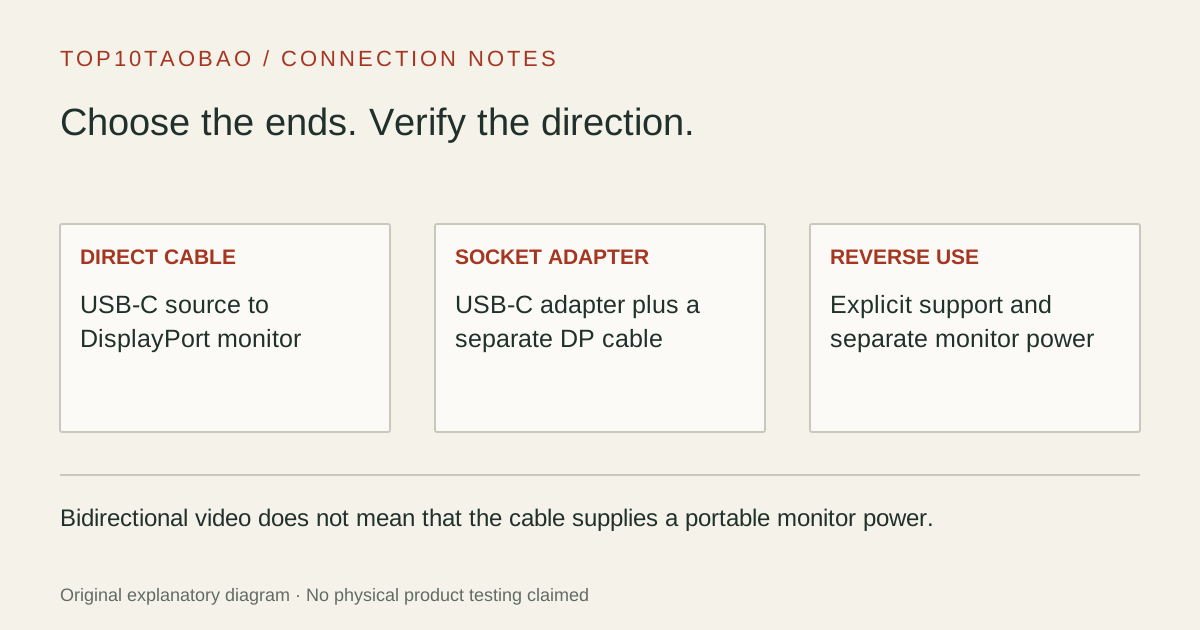
A direct cable ends at the monitor. An adapter leaves a DisplayPort socket for another cable. The right USB-C to DisplayPort purchase also depends on signal direction: a cable can have the correct plugs and still work only the other way.
By Top10Taobao Editorial · Sources checked November 5, 2026 · US edition
01 / CHECK THE COMPLETE SETUP
Start with the requirement.
Identify the source connector, the monitor input and whether the monitor has its own power. USB-C host → DisplayPort monitor is different from a desktop GPU DisplayPort output → USB-C portable monitor. A display video cable is also different from the USB-C-to-C data/charging leads in our cable comparison.
Do not substitute a similar product name or a different regional package. The sources linked under each entry support the named model and its stated conditions.
Original explanatory diagram; not a product photograph or tested wiring configuration.
02 / THE COMPARISON
Read the limit beside the headline.
Scroll the table horizontally on a small screen. Limits are manufacturer claims, not measurements. Ask the maker about a condition that is decisive and still unknown.
Exact models and documented restrictions; prices and live stock omitted
The socket-style adapter preserves the installed cable. Check that cable’s mode and length; the adapter’s ceiling does not establish what the second cable can carry.
A desktop GPU and a USB-C portable screen
Reject a forward-only cable. Even an explicitly bidirectional cable is insufficient if the screen expects power and video on that USB-C input. Find a documented powered arrangement for the exact screen.
A high-refresh DP gaming monitor
Confirm the exact USB-C GPU route and monitor mode, then DSC requirements. A monitor’s maximum over another input is not evidence that this USB-C-to-DP path reaches the same mode.
05 / EVIDENCE & SCOPE
What the comparison establishes.
These three arrangements compare connector layout and documented direction, not cable durability or the best gaming image. We have not measured link errors, sleep recovery, DSC behavior, audio or refresh-rate reliability. The Cable Matters entry is the 201036 black family; select and verify the exact sold length rather than transferring a claim to another SKU or extension.
Each entry has an original fit explanation, an exclusion and an alternative. We selected the models for distinct documented arrangements rather than copying another publication's order. Unknown fields are not filled by estimates, and manufacturer marketing measurements are not relabeled as independent tests.
Choose the physical arrangement before comparing bandwidth
DisplayPort purchase map
Source → screen
Arrangement to investigate
Check before buying
Video-capable USB-C → DP input
Direct cable or USB-C-to-DP socket adapter plus DP cable
Required reach, direction and supported mode
DP output → USB-C video input
Explicit bidirectional or reverse-conversion product
Exact display compatibility and separate power
USB-C → HDMI input
A dedicated HDMI adapter/cable
This DP output is not an HDMI socket
USB-C → Thunderbolt-only screen
A supported Thunderbolt path
DP Alt Mode compatibility cannot be assumed
A direct cable removes the extra DP join and fixes the reach. A socket adapter lets you keep or replace the DP cable separately. Neither layout is automatically faster or more reliable; choose the layout that satisfies the same complete specification with manageable cable routing.
A bidirectional video claim does not supply monitor power
The distinction that matters on a portable desk is whether the display accepts video independently of power. Plugable’s USBC-DP power exclusion is explicit: it cannot supply a portable USB-C monitor that needs both from the same lead. A second power socket on the monitor must be a supported arrangement in that monitor’s manual, not an assumed workaround.
Cable Matters 201036 instead explicitly excludes reverse use. Do not reverse a forward-only cable because the DisplayPort plug fits a graphics card. Label the source and display ends when moving a cable between desks.
Treat the maximum mode as a complete-system condition
For the higher Cable Matters modes, the relevant evidence is DP 1.4 HBR3 and DSC at the host plus a display supporting the desired mode. A USB4 or Thunderbolt badge alone does not identify every GPU output, color format or OS mode. If DSC or a target refresh rate is decisive and absent from the computer documentation, obtain an exact compatibility answer before selecting on that headline.
Record the model and selected input of the monitor.
Check that the chosen computer USB-C port carries video from the required GPU.
Match the exact cable length or the adapter-plus-cable combination.
Check the OS-selected mode after connection and keep the supplied dock cable for diagnostics.
A single cable does not remove the computer’s native independent-display limit. MST and multiple outputs require their own host and OS checks; a second connector is not proof of a second desktop.
Continue with the endpoint that is still uncertain