3 HDMI to DisplayPort Adapters and Cables: Check Direction and Power
An HDMI-output computer feeding a DisplayPort-input monitor needs a converter designed for that direction. Reversing a common DisplayPort-to-HDMI lead will not turn it into the required product.
By Top10Taobao Editorial · Sources checked November 5, 2026 · US edition
01 / CHECK THE COMPLETE SETUP
Start with the requirement.
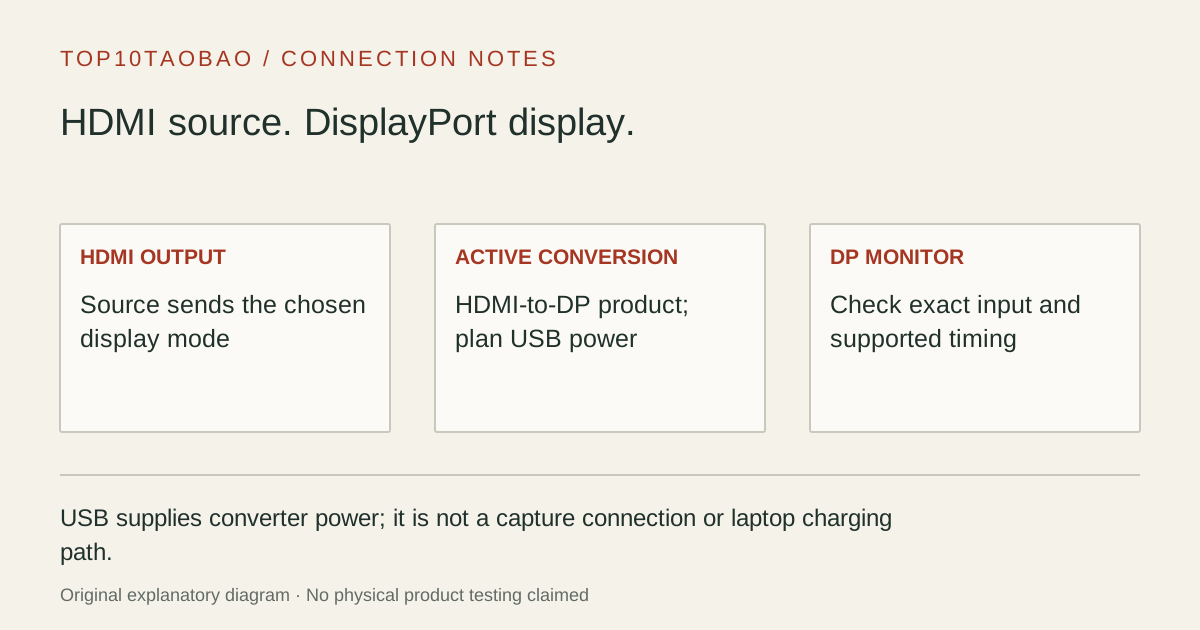
Label the endpoints: HDMI source → active HDMI-to-DP converter → DisplayPort monitor. Plan the converter’s USB power separately from the video path, and check the target monitor mode before selecting a headline such as 4K.
Do not substitute a similar product name or a different regional package. The sources linked under each entry support the named model and its stated conditions.
Original explanatory diagram; not a product photograph or tested wiring configuration.
02 / THE COMPARISON
Read the limit beside the headline.
Scroll the table horizontally on a small screen. Limits are manufacturer claims, not measurements. Ask the maker about a condition that is decisive and still unknown.
Exact models and documented restrictions; prices and live stock omitted
Confirm which laptop HDMI mode and monitor DP mode overlap. A 1440p60 target and a 4K60 target can lead to different converters even though the two physical ports are unchanged.
A desk with an existing DP cable
A socket adapter can retain that routed cable; the integrated HD2DPMM6 replaces it. Account for the USB power lead’s reach and nearby port clearance rather than evaluating video cable length alone.
A console or DisplayPort KVM is in the path
Require exact converter, source and destination compatibility. HDMI version and a 4K label are insufficient evidence for the required timing, VRR, HDCP behavior or switching. The Cable Matters entry explicitly warns against DP KVM use.
05 / EVIDENCE & SCOPE
What the comparison establishes.
This comparison separates a 4K30 socket adapter, a 4K60 HDR socket adapter and an integrated 4K30 cable. It is not a gaming-performance ranking. We have not measured signal stability, latency, HDR output or console compatibility. No VRR, 120/144Hz, DisplayPort KVM or universal console support is inferred from the connector names. Use each exact product ID and verify the complete source/display path.
Each entry has an original fit explanation, an exclusion and an alternative. We selected the models for distinct documented arrangements rather than copying another publication's order. Unknown fields are not filled by estimates, and manufacturer marketing measurements are not relabeled as independent tests.
Active HDMI-to-DP converter with a supported power path
DisplayPort
HDMI
DP-to-HDMI adapter; passive only where source and mode permit
Video-capable USB-C
DisplayPort
Documented USB-C-to-DP cable or adapter
HDMI
Computer USB port for recording
USB HDMI capture device, not a monitor converter
The converters above are for a DP monitor input, not a laptop’s HDMI input. Most laptop HDMI sockets are outputs; fitting a converter does not make the built-in laptop panel an external monitor. If the task is recording another device on the laptop, use USB HDMI capture cards and check the software preview requirements.
Keep USB power out of the video data diagram
USB supplies operating power to these active conversion arrangements. It does not mean the product captures HDMI video into the USB computer, carries USB peripherals to the display, or charges the laptop. A monitor USB hub port may or may not remain powered when the monitor sleeps; verify its documented behavior if that port will power the converter.
For 103069-BLACK, follow the maker’s power-first connection advice. Do not interpret optional power wording as a guarantee that every HDMI output can run the converter unaided. For the StarTech 4K60 model, plan access to a suitable powered USB connection within the attached lead’s reach.
For a fixed cable route, HD2DPMM6’s technical dimensions distinguish cable length from total product length. Leave slack for connectors and strain relief; a nominal length is not a guarantee that a cable reaches between tightly spaced rear ports.
Define 4K with a refresh rate and required features
A 4K30 converter does not meet a 4K60 requirement. Separately, 4K60 does not establish VRR, 120Hz, HDR at every color format, or support for every console. First write down resolution and refresh rate, then the color/HDR and synchronization features the source and monitor must retain.
Read the source’s HDMI output modes for the actual device, not just the graphics chip family.
Read the monitor’s DisplayPort input modes and any required input setting.
Match the converter’s exact model and direction, plus the separate DP cable where applicable.
If a KVM, switch or extender is involved, require support for that complete chain.
After connecting, confirm the OS or source selects the intended mode.
If a direct HDMI or DP connection is available, compare the native input choices first. Adding conversion may satisfy a connector mismatch, but it does not increase the source’s display capability.
If the connection is blank, avoid buying the same wrong direction twice
Check the product’s printed direction and the source/display labels first. Connect the specified USB power, select the monitor’s DP input and choose a documented conservative mode. Remove KVMs, extenders and extra converters for a direct check; record which step changes the result.
A DP-to-HDMI adapter in the drawer belongs to the opposite conversion path. A USB-C-output source may fit a direct USB-C-to-DP arrangement instead. If the complete chain remains undocumented, obtain an exact compatibility answer before treating another purchase as the diagnosis.