3 USB HDMI Capture Cards: Separate Capture from Passthrough
Choose a USB HDMI capture card by the signal you want to record and the signal you want to keep on the monitor. Those can be different modes, and a 4K input or passthrough label does not establish 4K recording.
By Top10Taobao Editorial · Sources checked November 5, 2026 · US edition
01 / CHECK THE COMPLETE SETUP
Start with the requirement.
Write two targets: the source-to-monitor mode and the recorded file mode. Then check the recording computer’s USB port, cable, software and OS. Only use sources you are authorized to capture; these devices require supported unencrypted HDMI signals.
Do not substitute a similar product name or a different regional package. The sources linked under each entry support the named model and its stated conditions.
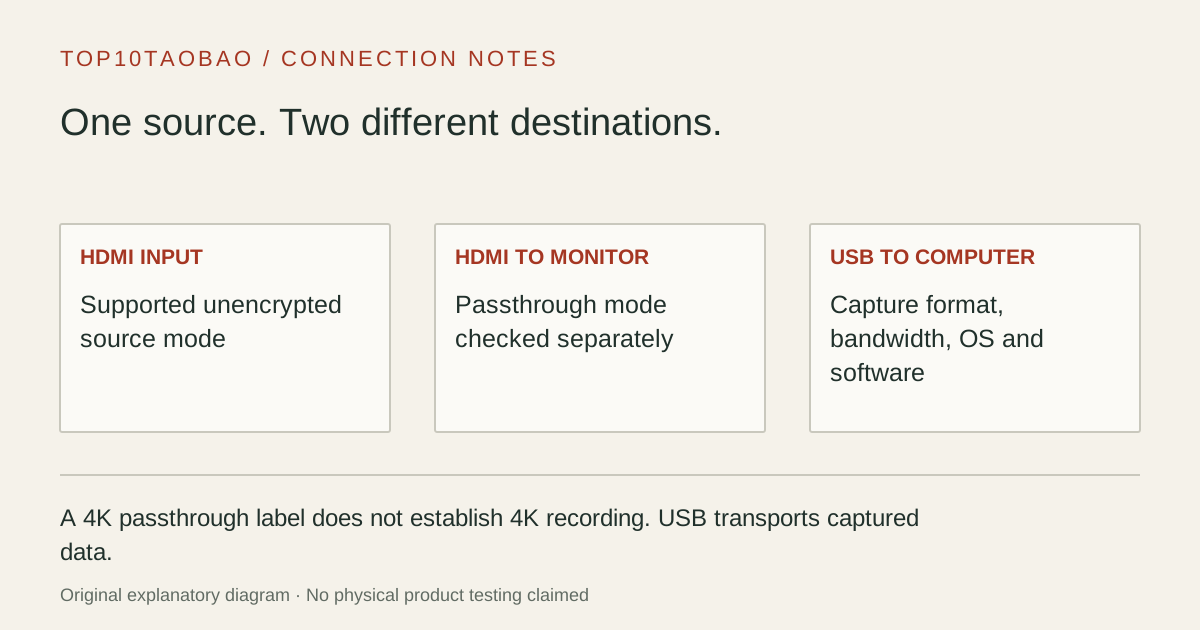
Original explanatory diagram; not a product photograph or tested wiring configuration.
02 / THE COMPARISON
Read the limit beside the headline.
Scroll the table horizontally on a small screen. Limits are manufacturer claims, not measurements. Ask the maker about a condition that is decisive and still unknown.
Exact models and documented restrictions; prices and live stock omitted
Confirm that the camera has an appropriate HDMI output mode, can provide the clean picture you need and can stay powered for the session. The capture card does not remove camera overlays or supply a camera-specific power solution.
A fast monitor with a lower-resolution stream
Check the passthrough column before the recording column. A 1080p stream can still require a card that preserves the monitor’s higher mode. Do not put a 1080p60-only card into a path that must remain 1440p120.
A Mac recording from a separate device
Treat the Mac as the USB recording host, not automatically as a supported HDMI source for every card. Confirm SDR/HDR behavior, software and the actual USB link before selecting on a maximum frame rate.
05 / EVIDENCE & SCOPE
What the comparison establishes.
These three models illustrate different capture paths, not a best-image or lowest-latency ranking. We have not measured preview delay, frame pacing, compression quality, audio sync or thermal behavior. Listed modes are conditional manufacturer specifications; the current mode matrix and recording software must support the exact combination. No HDCP removal or protected-stream recording capability is implied.
Each entry has an original fit explanation, an exclusion and an alternative. We selected the models for distinct documented arrangements rather than copying another publication's order. Unknown fields are not filled by estimates, and manufacturer marketing measurements are not relabeled as independent tests.
Can the card accept this unencrypted resolution, refresh rate and color format?
That every accepted input can be recorded unchanged
HDMI output → monitor
Can passthrough preserve the monitor mode and required features?
That software preview has the same delay
USB → recording software
Which capture format is available on this USB link, OS and app?
That the recorded file matches the source’s highest mode
The HDMI output is for a display; USB transports captured video to the recording computer. A USB-C-to-HDMI output adapter sends the computer’s video toward a screen and cannot substitute for this input function. Similarly, a USB power plug on an HDMI-to-DisplayPort converter is not a capture data connection.
Choose a recording format before buying a bandwidth headline
For 4K X, Elgato’s codec table distinguishes formats at the same resolution. At 3840×2160, its NV12 entry lists 60fps on a 10Gbps connection and 30fps on a 5Gbps connection; MJPG has different listed options. A shared “4K” label therefore does not answer the format question.
The same document excludes capturing DSC video and says macOS receives SDR when an HDR source is converted. A working monitor with a black capture preview can have a mode problem rather than a broken card. Use a documented lower non-DSC mode to isolate the path; do not infer support from passthrough alone.
Check the exact host requirements for the software you plan to use. CPU, GPU encoding, RAM, storage and the USB cable remain part of a working recording system. Elgato also documents a Mac software setting for enabling 10Gbps capture. That setting does not turn a slower computer port or cable into a faster physical link.
Build a small, reproducible first connection
Use a supported source with an unencrypted HDMI output and choose a conservative documented mode.
Connect the source to HDMI IN. Add HDMI OUT to the monitor if passthrough is required.
Connect the card directly to an appropriate recording-host USB port with the specified data cable.
Select the card as the video source and, where needed, its audio device in the recording app.
Record a short sample, inspect the file’s actual mode and listen for audio sync before a live session.
For NIX, use the model-specific audio setup rather than assuming the preview and recording use the same audio device. Its documentation has differing included-cable descriptions, so verify the supplied host lead with the seller; do not order an extra cable based on an assumed box revision.
Adding hubs, switches or extension cables before this first check makes failures harder to locate. Reintroduce the intended desk hardware one piece at a time after a direct connection works. USB data capability and the exact cable comparison help separate connector shape from data requirements.
Resolve the purchase-changing questions
What exact source mode must remain on the monitor while recording?
Which recorded resolution, frame rate, pixel format and HDR/SDR mode do you need?
Does that combination appear in the current card-specific matrix for your host and app?
Are both HDMI cables and the required USB data lead available?
Can the computer encode and store the intended recording for the required duration?
If the job is only to select between HDMI sources or duplicate a picture on screens, start with the splitter-versus-switch guide. A capture device is useful when recording or exposing video to software is part of the task.