3 DisplayPort to HDMI Adapters: Active or Passive?
For a computer DisplayPort output and an HDMI monitor, choose the adapter around the source port and target display mode. Passive DP++ conversion and active conversion are different requirements, even when the plugs look alike.
By Top10Taobao Editorial · Sources checked November 5, 2026 · US edition
01 / CHECK THE COMPLETE SETUP
Start with the requirement.
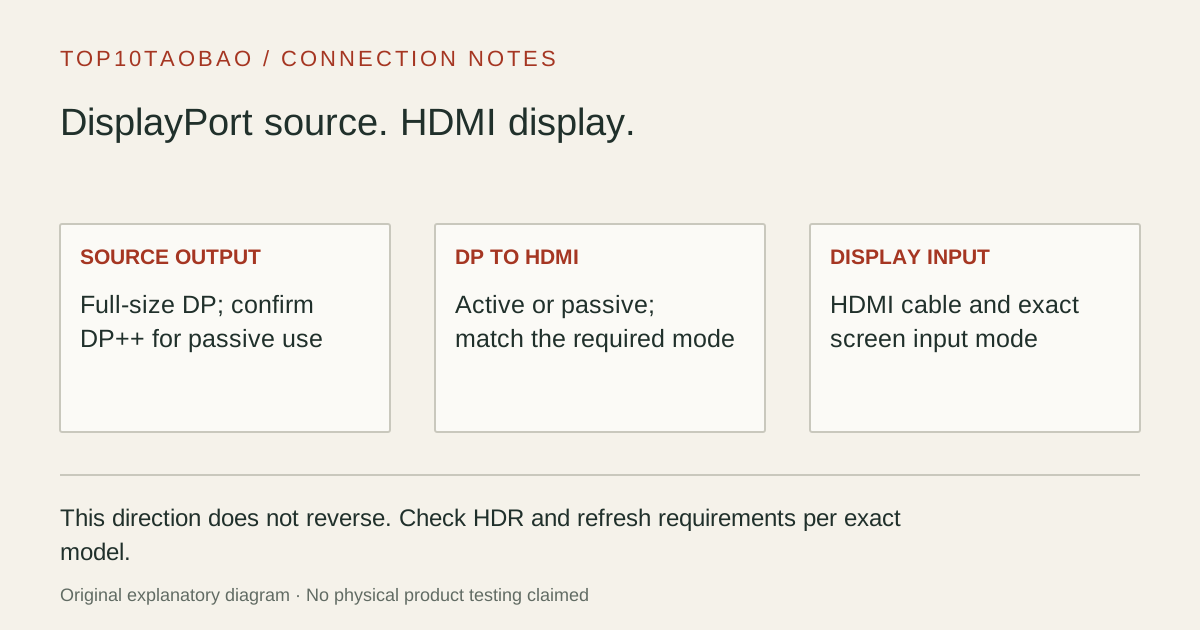
Write the direction: full-size DisplayPort source → adapter → HDMI cable → HDMI display. Check DP++ if considering a passive model. If the computer instead has HDMI output and the screen has DisplayPort input, use the reverse-direction comparison.
Do not substitute a similar product name or a different regional package. The sources linked under each entry support the named model and its stated conditions.
Original explanatory diagram; not a product photograph or tested wiring configuration.
02 / THE COMPARISON
Read the limit beside the headline.
Scroll the table horizontally on a small screen. Limits are manufacturer claims, not measurements. Ask the maker about a condition that is decisive and still unknown.
Exact models and documented restrictions; prices and live stock omitted
Check DP++ rather than selecting on the largest resolution label. A suitable passive model can fit this documented task; an active model is the relevant alternative when the source lacks DP++.
A 4K60 desk monitor
The passive entry’s 4K30 ceiling fails the requirement before price or brand enters the decision. Check the active model, exact HDMI input and cable together. Keep SDR and HDR requirements separate.
The DP output belongs to a dock
Use the dock’s own display-conversion recommendations. Do not infer DP++ from the presence of a full-size socket, or transfer compatibility from another dock that uses a different display engine.
05 / EVIDENCE & SCOPE
What the comparison establishes.
This shortlist compares one passive and two active arrangements. It does not rank picture quality, cable reliability or gaming latency. We have not tested a complete display path. Two official documents contain differences that matter: Plugable DP-HDMI has inconsistent HDR wording, and StarTech DP2HD4K60S has differing older-host requirements. Those gaps are visible below; no universal HDR or DP1.2 compatibility is claimed.
Each entry has an original fit explanation, an exclusion and an alternative. We selected the models for distinct documented arrangements rather than copying another publication's order. Unknown fields are not filled by estimates, and manufacturer marketing measurements are not relabeled as independent tests.
Active versus passive: the source does different work
A passive DP-to-HDMI adapter relies on a Dual-Mode source providing the required signaling. An active adapter performs conversion for a suitable native DP signal. “Passive” is not a synonym for “works with every DisplayPort socket,” and “active” does not establish every HDR, VRR or high-refresh feature.
DP-to-HDMI decision map
Your source and target
Decision
Evidence still needed
Confirmed DP++ output; 1080p60 or 4K30 is sufficient
A matching passive model can fit
Exact host mode and the HDMI display/cable
Native DP output without confirmed DP++
Investigate an active converter
Model-specific source compatibility
4K60 required
Reject a model documented only for 4K30
Complete 4K60 path, then SDR/HDR requirements
HDMI output on the computer; DP input on the monitor
Use HDMI-to-DP conversion
Reverse-direction product and power requirements
Full-size DP, Mini DP and USB-C are different physical arrangements. If the computer has USB-C output, start with the USB-C-to-HDMI comparison rather than assuming this full-size DP adapter is a direct fit.
Do not resolve conflicting feature claims by choosing the larger number
The DP-HDMI page retains a non-HDR FAQ while another table describes HDR at 30Hz. We use its documented 4K60 SDR task and leave HDR-dependent purchasing unresolved. Ask the maker to identify the shipped revision and supported host/display mode before buying it for HDR.
The DP2HD4K60S datasheet lists no HDR support. Its source note also differs between DP1.4 and minimum DP1.2 wording. A confirmed DP1.4 source stays within the stricter note; a DP1.2-only source needs an exact answer. Avoid treating a standard’s theoretical capability as proof that a particular converter implements it.
A display can advertise HDR while an adapter path supplies only SDR. If HDR or variable refresh is essential, require the feature for the complete conversion chain. A 60Hz ceiling by itself does not establish VRR, color depth, chroma format or protected-playback compatibility.
Check an existing blank or limited connection in a useful order
Confirm DP output on the computer or dock and HDMI input on the screen. Read any direction arrows on the adapter.
For a passive model, verify the exact source supports DP++; a missing logo alone is not a complete specification.
Use a monitor mode within the adapter ceiling and select the connected HDMI input.
Try the intended short HDMI lead directly, removing extra extenders, switches and converters for isolation.
Check OS resolution, refresh rate and the selected display-audio device; restore extra desk hardware one piece at a time.
This is an isolation sequence, not a promise that replacing the adapter fixes every blank screen. A damaged port, unsupported GPU mode or dock-specific restriction can remain. Keep the exact host, dock and monitor models with the result of each check.
Choose the native or reverse path when it fits better