BUYING GUIDE / CONNECTION NOTES
HDMI vs DisplayPort: Choose by Your Actual Devices
Use the connection that supports the mode and features your source and display share. HDMI versus DisplayPort is a device-to-device decision: the newer standard’s theoretical maximum does not upgrade the ports you already own.
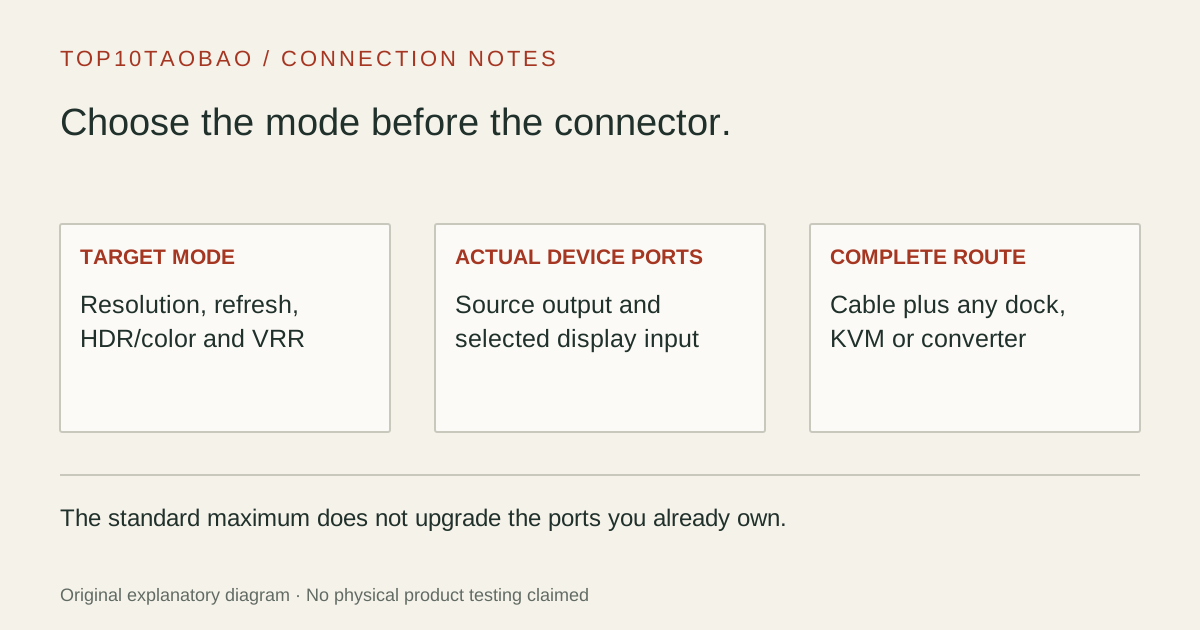
Start with the screen mode you need
| Your setup | First path to check | What can change the answer |
|---|---|---|
| PC and monitor have both native connections | The input that documents your target resolution, refresh rate and required features | Per-input limits, GPU routing, color mode and VRR support |
| HDMI-only source and HDMI display | A direct suitable HDMI path | The specific port modes and any receiver or switch in between |
| DP-output computer and DP monitor | A direct suitable DP path | Source/display link capability and cable reach |
| Video-capable USB-C computer and DP/HDMI monitor | A documented native-video cable or adapter for the chosen input | USB-C video capability, conversion limits and occupied charging port |
| Source and monitor use different connectors | A converter for the exact source-to-display direction | Power requirements and features lost across conversion |
Write a target such as “2560×1440 at 165Hz with the supported variable-refresh mode” rather than “a good gaming cable.” That target can be checked against two manuals. For a 60Hz office screen, an already working path may meet the whole requirement; a newer connector label alone is not a reason to replace it.
A real monitor shows why the input matters
Dell’s G2724D specification lists 2560×1440 at 165Hz over DisplayPort and 144Hz over HDMI. The panel name does not make the two inputs identical. With a source that supports the matching DP mode, the DP input is the documented route to its 165Hz ceiling.
This is a manufacturer-document example, not a tested performance result or a current monitor recommendation; Dell marks the product unavailable at the source check. It does not establish that DisplayPort is faster on every monitor. Another display can implement different HDMI and DP modes, so repeat the check for the exact monitor and selected input.
- Monitor: target resolution and refresh rate on the specific input.
- Source: the mode supported by the exact GPU/device output in use.
- Features: VRR, HDR/color format and audio requirements on that path.
- Connection: a suitable cable, plus any converter, dock, switch or receiver.
- Result: the mode actually selected by the OS or source after connection.
HDMI 2.1 vs DisplayPort 1.4: compare implemented modes
For a purchase described as HDMI 2.1 versus DisplayPort 1.4, start with the device tables rather than declaring a winner from the numbers. A newer HDMI input may offer the mode you need, while an existing DP output may already satisfy the same task. The relevant question is whether your source can send the target mode into your monitor’s corresponding input.
| Label in the listing | Question to ask | Evidence that answers it |
|---|---|---|
| HDMI 2.0 vs DP 1.4 | Which of these actual ports reaches my monitor’s chosen mode? | Source output and monitor input mode tables |
| HDMI 2.1 vs DP 1.4 | Is the target refresh, HDR/color format and VRR mode supported on the complete path? | Exact-device specifications, including DSC where used |
| DP 2.1 / 2.1b | What link rate does this product actually implement? | Named rate/capability, not the version alone |
| HDMI 2.2 / Ultra96 | Does the new device and cable path implement the bandwidth needed for my task? | Device feature specification and appropriate certified cable |
VESA’s current FAQ describes DisplayPort 2.1b and allows qualifying devices with a minimum HBR2 rate plus required features. The version therefore does not mean every product implements the maximum UHBR rate. DSC is another capability to verify in the devices and any intermediate hardware, rather than treating it as an automatic property of a plug.
HDMI’s 2.2 overview describes up to 96Gbps and the Ultra96 designation, while existing Ultra High Speed cable systems cover up to 48Gbps. These are standard and cable capabilities, not a measurement of your equipment. Buying a newer cable does not add a missing output mode to an older source or display.
For gaming, keep refresh, VRR and color separate
A fixed refresh rate and variable refresh support are separate requirements. Write both down. Likewise, a connection that reaches a target resolution in SDR is not proof it can retain the chosen HDR mode, bit depth or chroma format. Check the combination rather than checking each marketing badge in isolation.
For a high-refresh purchase, record the source output, monitor input and intended color setting. If a document invokes DSC, verify whether every intermediate device accepts that signal. For example, capture-card compatibility can differ between a monitor passthrough path and the signal that can be recorded. A black capture image is not evidence that the monitor connection itself failed.
Both HDMI and DisplayPort can carry audio. Check that the receiving device has the intended audio function and that the source selects it. A monitor without speakers does not gain them through a different cable. TV/sound-system functions such as eARC require the documented HDMI ports and devices that implement them; do not transfer those functions to a DP converter because it also carries ordinary audio.
For a console, confirm that console’s actual output and the display’s input modes. Do not choose a DP converter merely because the monitor’s highest PC refresh rate appears under DisplayPort. The converter must support the console’s exact signal and the features you need.
Choose the simplest supported route through the desk
When source and monitor share a suitable native connector, a direct path removes an extra conversion step from the compatibility question. When conversion is necessary, direction matters: DP source to HDMI display and HDMI source to DP display use different arrangements. A fitting plug is insufficient proof of direction.
For USB-C computers, use the port video-support check first, then compare USB-C-to-HDMI adapters or USB-C-to-DisplayPort connections. A USB-C data or charging badge alone does not establish native display output.
For several independent screens, check the host, dock and OS display limits. An MST arrangement needs a supported source, display topology and OS. An HDMI splitter repeats a signal; it does not manufacture another independent desktop. Use the routing guide if source selection or mirroring is the task.
A dock or KVM can become the limiting part of an otherwise compatible source and screen. Check the exact input/output group and simultaneous-use conditions. A port count does not establish the mode available when all screens and peripherals are active.
Make the cable purchase answer a specific question
- Write the target resolution, refresh rate, SDR/HDR/color format and synchronization features.
- Find that mode in both the source output and the chosen monitor input documentation.
- List every dock, adapter, KVM, receiver, switch and cable in the route.
- Choose an appropriate cable category or documented DP rate and the required reach; do not shop on an unqualified “8K” label.
- Keep a direct known-compatible path available for isolation after the purchase.
- Check the OS-selected mode and required features after connection.
If the existing connection already delivers the required mode and features, compare practical needs such as cable routing, free ports and desk switching before replacing it. If it falls short, identify the component whose documented limit fails the target. That gives the next purchase a checkable purpose.
Sources & scope
Published specifications and standards explain possible capabilities. They do not verify a complete combination of your computer, cable, adapter and peripheral. No physical product test is claimed.
- VESA DisplayPort FAQ: current standard, minimum rate, audio and DSC
- HDMI Licensing Administrator: HDMI 2.2, Ultra96 and existing 48Gbps systems
- Dell G2724D: input-specific QHD refresh rates, used as a documentation example
- Plugable DPM-HDMIF: passive DP++ requirement and 4K30 ceiling
- Cable Matters 103069-BLACK: one-way HDMI-to-DP, power and KVM exclusions
- Elgato 4K X: input/capture matrix, USB codec table and DSC exclusion