Choose a USB-C to HDMI adapter by the computer output and the HDMI display mode you actually need. A connector that fits, an 8K headline and a Thunderbolt-compatible label answer different questions.
By Top10Taobao Editorial · Sources checked November 5, 2026 · US edition
01 / CHECK THE COMPLETE SETUP
Start with the requirement.
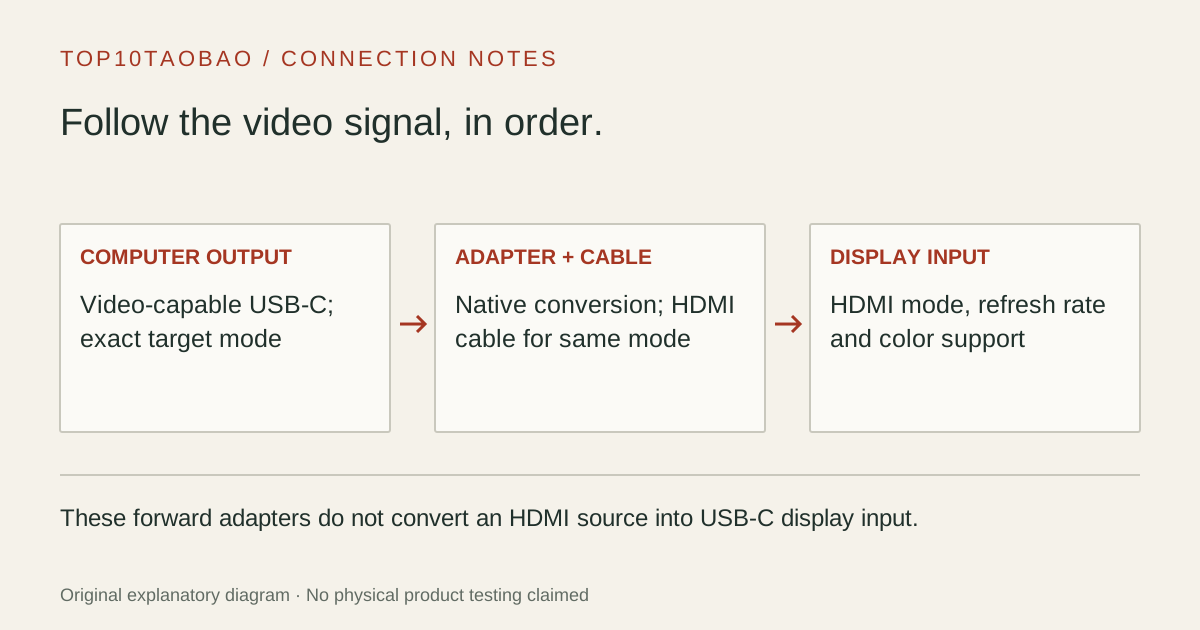
Write the signal direction first: computer USB-C output → adapter → HDMI cable → display HDMI input. Check the exact computer port, display input and target resolution/refresh rate. These adapters do not turn an HDMI-output computer into a USB-C display source.
Do not substitute a similar product name or a different regional package. The sources linked under each entry support the named model and its stated conditions.
Original explanatory diagram; not a product photograph or tested wiring configuration.
02 / THE COMPARISON
Read the limit beside the headline.
Scroll the table horizontally on a small screen. Limits are manufacturer claims, not measurements. Ask the maker about a condition that is decisive and still unknown.
Exact models and documented restrictions; prices and live stock omitted
Confirm that the monitor input is configured for its higher-bandwidth HDMI mode. Compare the two 4K60 arrangements before paying for a higher headline that your setup does not need.
A Mac and a high-refresh HDMI screen
Record the Mac chip, macOS version and desired mode. For USBC-HDMI8K, obtain confirmation of the required adapter firmware and a supported update route before relying on the connection.
A computer with only HDMI output
Stop before ordering one of these forward adapters. A reverse HDMI-source-to-USB-C-display conversion is a separate powered product category with its own display compatibility limits.
05 / EVIDENCE & SCOPE
What the comparison establishes.
This three-model comparison separates a conventional 4K60 connection, an explicit HDR requirement and a conditional higher-refresh path. It is not a market-wide best ranking. We have not tested latency, signal stability, HDR accuracy, HDCP playback or any complete setup. Manufacturer ceilings are conditional; unknown compatibility is not filled by a brand-name match.
Each entry has an original fit explanation, an exclusion and an alternative. We selected the models for distinct documented arrangements rather than copying another publication's order. Unknown fields are not filled by estimates, and manufacturer marketing measurements are not relabeled as independent tests.
Host video output plus adapter, HDMI cable and display support
USB-C shape alone
HDR at the desired mode
Exact host/output/display color and HDR conditions
Any product with 4K in its name
4K high refresh or 8K
Exact GPU/port, DSC where required, OS, firmware and HDMI input
An 8K title guarantees every lower mode
Laptop charging too
A separate charger route or a hub with documented host PD
This single-output adapter provides PD
For a normal desk, write the target as “3840×2160 at 60Hz, one extended screen, HDMI input.” If the monitor also has DisplayPort, compare a direct USB-C to DisplayPort connection against converting to HDMI. Choose the display input you can actually use, rather than adding another converter after the adapter.
Resolve the USBC-HDMI8K Mac wording before purchase
The product listing retains a 4K60 Mac limit, while the newer model-specific firmware note describes higher-refresh support for selected Apple Silicon Macs on macOS 26 or later. It excludes base M1/M2, lists supported Pro/Max and M3-or-newer processors, and requires suitable firmware, display and HDMI cable. We do not turn that note into a universal 4K240 promise for every Mac or monitor.
The documented firmware update route uses a Windows computer with video-capable USB-C, and the maker asks customers to obtain its instructions. Do not buy on the assumption that an unopened adapter already has the necessary firmware, or install a random firmware file for a similar chipset. Get the maker’s confirmation for the exact unit and target mode.
Keep direction, charging and screen count separate
All three entries use native video from the host. None is a USB capture card or a way to feed an HDMI console into a laptop screen. Their single HDMI socket also does not create two independent desktops: adding an ordinary splitter repeats a signal rather than generating another desktop.
A laptop with one usable USB-C port may need that port for charging. If charging and video must share the port, compare documented USB-C hub port and power arrangements or a suitable dock. A spare USB-C socket on some other product must be checked explicitly for video or PD; connector shape is not the specification.
Identify the exact computer port and its supported output mode.
Check the monitor’s specific HDMI input, not just its panel resolution.
Choose the adapter and HDMI cable for the same mode and required features.
After connection, check that the OS actually selects the intended resolution, refresh rate and extend/mirror setting.