BUYING GUIDE / CONNECTION NOTES
What Is a KVM Switch? Plan a Two-Computer Desk
A KVM switch lets multiple computers take turns using a shared keyboard, display and mouse. The useful first question is which connections must move together: USB input devices, one or two screens, audio, storage and possibly laptop charging.
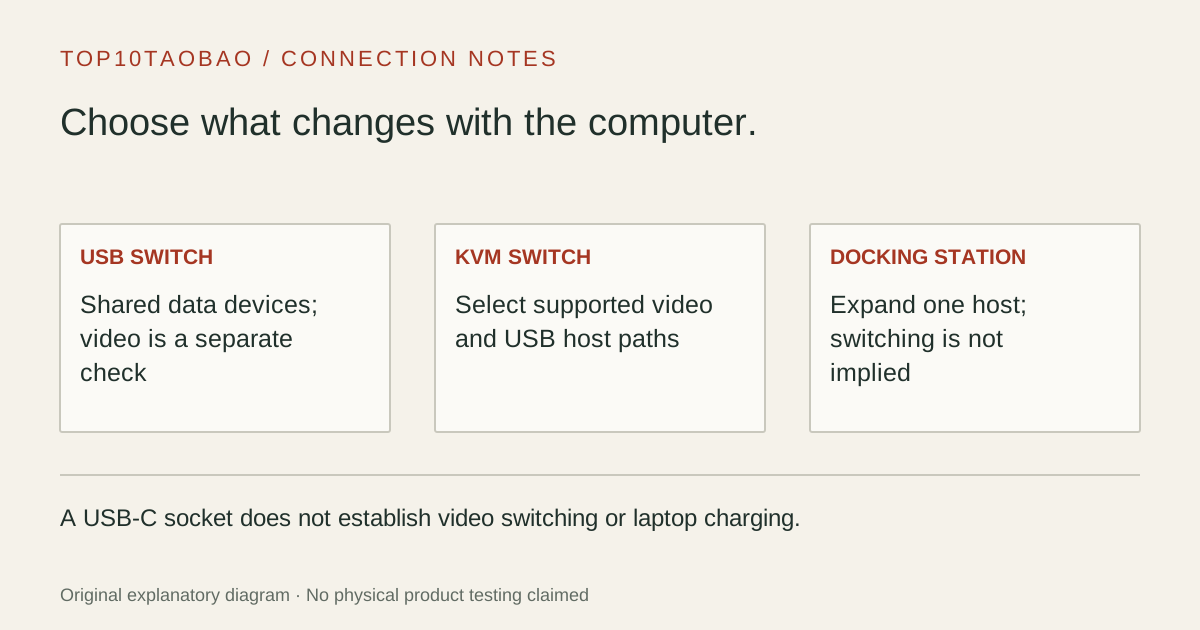
Choose by what needs to follow the selected computer
| Need | Device class to inspect | What still needs its own plan |
|---|---|---|
| Share keyboard, mouse or a USB peripheral | USB data switch | Display selection and laptop charging |
| Switch shared video and USB between computers | KVM switch | Each computer’s required video inputs and any charging |
| Connect one laptop to several devices | Docking station | Switching to another computer is not implied |
| Switch two laptops and provide charging | Documented KVM dock | Two-host power allocation and OS display limits |
The name is shorthand for keyboard, video and mouse. It does not mean every socket or every device switches identically. Some models can lock audio or USB focus separately; some have a remote; some accept one USB-C host cable while others need separate video and USB leads.
This guide concerns local desktop hardware. Kernel-based Virtual Machine software and network-based remote KVM products are different meanings of KVM and are outside this buying decision.
Trace video and USB as two separate paths
On a conventional KVM, each computer sends video through HDMI or DisplayPort and sends keyboard/mouse traffic through an upstream USB connection. A video cable alone does not connect the shared keyboard. The selected input group must contain the video and USB from the same computer.
A dual-monitor version normally needs two usable display signals from each computer. If the KVM accepts separate video cables, that can mean two video leads and one upstream USB lead per host. A USB-C KVM instead depends on the host link and the model’s exact display technology; one connector does not prove two independent desktops.
For a concrete separate-video example, StarTech’s SV231DPDDUA2 manual identifies the two DisplayPort paths, upstream USB and console connections. Its stated USB 2.0 sharing is a different requirement from high-speed external storage. Read the dual-monitor KVM comparison for complete per-computer connections.
If the screens can stay put, a USB switch may be sufficient
Suppose computer A has its own monitor and computer B has another, but you want to share one keyboard and mouse. A USB data switch can move those input devices while each display remains connected directly. You may not need video switching at all.
If a single monitor has two suitable inputs, another arrangement is direct video from both computers plus a USB switch. You then change the monitor input and USB selection as separate actions. With two monitors, those selections can multiply; a KVM is useful when one coordinated change is the actual requirement.
Check the exact USB switch. Cable Matters 201160 explicitly lists data-only operation with no video or host charging and excludes use with displays or docks. The presence of USB-C sockets on that model does not turn it into a video KVM.
Keep laptop charging and independent screens on the worksheet
An external power supply can power the KVM itself without charging a laptop. A USB charging socket for a phone can also coexist with no laptop PD output. Only count host charging when the manufacturer documents the computer-facing power path and its budget with your number of connected hosts.
For screens, establish both the computer’s maximum supported display count and the KVM’s transmission path. Apple’s display guidance points to the exact Mac model. A Mac that can drive two external screens through supported outputs still needs a KVM architecture that carries those independent streams.
The distinction matters for the reviewed USB-C MST arrangements: macOS can have one external extended desktop while a second attached monitor mirrors it. A second illuminated screen is not evidence of a second independent workspace. Use the multi-monitor checklist before shopping by socket count.
Decide which switching behavior actually matters
EDID is information a display provides about itself and its supported modes. Depending on the KVM, an inactive computer may see the display as disconnected. That can cause re-detection or moved windows when you return. Emulation is a model- and mode-specific feature, not an automatic promise of every KVM.
For example, TESmart’s HDK202-P23-V2 specification ties its EDID emulation to Display Mode 1. Do not transfer that claim to another display mode or a similarly named revision. A documentation claim also does not establish the sleep/wake behavior of your complete desk.
Keyboard and mouse ports may handle ordinary wired input differently from a general USB peripheral port. If you need a webcam, audio interface, wireless receiver or external drive, verify that peripheral separately. Changing a storage device’s host during an active write is not a useful switching test; finish transfers and safely eject first.
Write one acceptance sentence before choosing a model
| Question | Record a concrete answer |
|---|---|
| Which computers? | Exact models, OS versions and usable host ports |
| Which displays? | Inputs, resolution, refresh rate and independent versus mirrored workspaces |
| What must switch? | Keyboard/mouse only, video too, or selected extra USB/audio devices |
| What must stay powered? | Laptop A and B charging requirements with both connected |
| What behavior must be proven? | Manual selection, keyboard shortcut support, sleep recovery and ordinary repeated switching |
A clear requirement might be: “Two computers, each proven to drive two 4K 60Hz displays, sharing one wired keyboard and mouse, with separate laptop chargers acceptable.” That points to a different shortlist from “two USB-C laptops, one external desktop each and charging through the switch.”
If you need coordinated video and USB, continue to the exact-model KVM comparison. If one-cable laptop charging is decisive, use the USB-C KVM and KVM-dock plan. For one computer and several peripherals, start with hub versus docking station.
If only USB peripherals need switching, compare three data-only USB sharing arrangements.
If only HDMI video needs routing, use the HDMI source and display routing decision.
Sources & scope
Published specifications and standards explain possible capabilities. They do not verify a complete combination of your computer, cable, adapter and peripheral. No physical product test is claimed.