BUYING GUIDE / CONNECTION NOTES
HDMI Splitter vs Switch: Which Connection Do You Need?
An HDMI splitter sends one source to multiple displays, normally repeating the same picture. An HDMI switch selects among several sources for one display. Neither name means that a laptop gains another independent desktop.
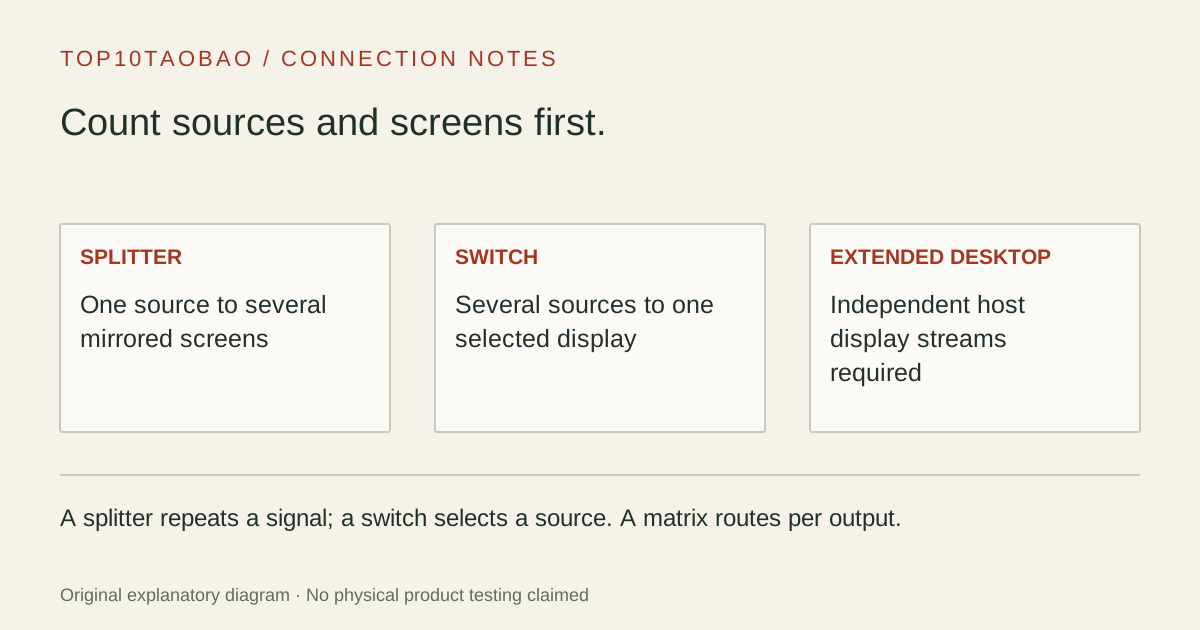
Count HDMI sources and displays first
| Task | Arrangement to investigate | What it does not imply |
|---|---|---|
| One laptop picture on two TVs | 1-in / 2-out splitter | Two independent extended desktops |
| Laptop and console share one monitor input | 2-in / 1-out switch | Both pictures visible simultaneously |
| Two sources routed separately to two displays | A suitable matrix, or separate verified paths | A simple splitter independently selects each picture |
| Two independent laptop workspaces | Two supported host display streams through outputs, adapters or a compatible dock | A splitter creates an extra GPU display stream |
| Two computers share monitor plus keyboard/mouse | A suitable video KVM | An ordinary HDMI switch also switches USB |
Write “source” beside each computer, console or player, and “display” beside each monitor, TV or projector. The numbers on a listing are useful only after you know which are inputs and which are outputs. A device described as a 2-port HDMI box could solve either of two opposite problems.
Use a splitter to distribute an existing picture
A conventional splitter takes one HDMI source and distributes that signal to multiple output displays. For example, a laptop presentation can appear on two room screens. The source still supplies one picture; the outputs do not become independently addressable desktop workspaces just because Windows or macOS has an Extend setting.
StarTech’s splitter documentation distinguishes mirrored displays from extending a desktop and says that independent screens need separate supported video connections. A product marketed as an “HDMI splitter for dual monitors” must therefore be checked for the actual task: duplicated presentation screens and independent work screens are different requirements.
For two different workspaces, first check the exact computer’s independent-display support and then choose a supported output or dock arrangement. A single-output USB-C to HDMI adapter followed by a basic splitter remains one source signal.
Use a switch to choose which source reaches a display
A conventional HDMI switch connects several sources to one display input, then selects the active source. It can be useful when a monitor’s usable HDMI inputs are already occupied, or when an input meeting the desired video mode is shared. The switch does not combine the selected computer’s desktop with another source.
For a concrete wiring example, the StarTech VS221HD20 datasheet describes two HDMI sources feeding one HDMI display. That topology is the point of the example; it is not a current-price recommendation or a claim that this model covers every HDR, VRR, audio or console requirement.
Keyboard, mouse and storage ownership remain separate unless the product explicitly includes the required USB switching. Use a documented USB sharing arrangement for USB-only ownership changes or a suitable KVM when the video and USB path must change together.
Choose a matrix only when independent routing is the requirement
A matrix adds a different control: selecting which input feeds each output. A suitable 2×2 or 4×4 model can route different source signals to different displays, or the same source to more than one output, within its documented modes. StarTech’s matrix specification is an example of per-output source selection.
That routing still does not manufacture extra independent desktops from a single HDMI source. A laptop feeding one HDMI input contributes that one signal to the matrix. Features such as multiview, picture-in-picture, scaling, audio extraction and USB switching are separate product capabilities; the word “matrix” does not establish them.
Check video mode, audio and EDID before buying
Write the required resolution and refresh rate together, then any HDR, color, VRR, audio or HDCP requirement. Confirm the same complete path across source, routing device, every cable and the selected display input. “4K” alone does not specify 30Hz versus 60Hz, a color format, or the operating combination across two different screens.
EDID is the display-capability information used during negotiation. Splitters may copy one display’s EDID, expose a fixed profile or use another documented policy. Read the exact manual when the screens have different capabilities; do not assume automatic downscaling or that each output can run an unrelated mode.
One useful warning comes from the StarTech ST122HD202 manual: its default EDID profile is 1920×1080 at 60Hz with two-channel audio, and another setting uses the display on output 1. A 4K60 product headline therefore does not establish the mode negotiated with its current switch setting. This example is specific to that model, not a rule for all splitters.
If one screen is blank or the selected mode drops, check the manual’s EDID behavior and each screen separately before replacing random cables. Do not use EDID or routing settings as a method to bypass content protection.
Apply the choice to three desks
- One presentation, two TVs: a supported splitter may fit. Verify both TV input modes, the cable runs and the exact EDID or scaling behavior.
- Work laptop and console, one monitor: a supported switch may fit. Verify the desired mode for each source and whether automatic switching is desirable.
- One laptop, two different work windows: verify two supported independent displays and choose the appropriate direct outputs or dock. A standard HDMI splitter is not the route.
A routing product can be electrically suitable and still be inconvenient if it selects the wrong source after wake, loses the desired audio route or requires a button behind the desk. Check the documented selection controls and try the complete intended routine while the return option remains available. We have not measured switching time, reliability or compatibility for the examples.
Continue with the connection that needs evidence
Use the multi-monitor checklist for independent workspaces, the DisplayPort connection comparison for a monitor’s DP input, and the KVM decision guide for two computers sharing input devices. If a USB-C display path already fails, use the display troubleshooting guide before purchasing another routing box.
If the goal is recording a source on a computer rather than routing it to screens, compare USB HDMI capture cards.
For a direct screen connection, compare native HDMI and DisplayPort input choices.
Sources & scope
Published specifications and standards explain possible capabilities. They do not verify a complete combination of your computer, cable, adapter and peripheral. No physical product test is claimed.