BUYING GUIDE / CONNECTION NOTES
USB-C KVM or KVM Dock? Plan the Whole Desk
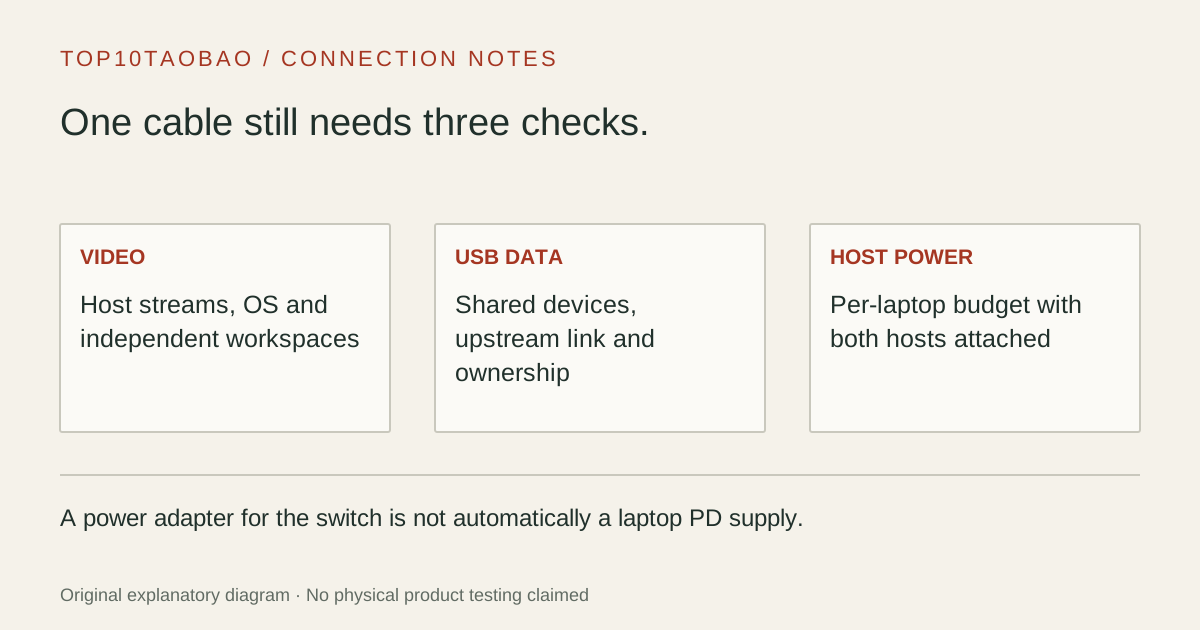
One cable to each laptop is a wiring goal, not a capability specification. To choose a USB-C KVM or KVM dock, trace four functions separately: video, USB data, laptop charging and which devices change ownership when you switch.
Start with the arrangement that preserves both computers’ capabilities
| Arrangement | Why consider it | Condition that decides the fit |
|---|---|---|
| Separate-video KVM + each laptop’s own dock or adapters | Keeps charging and port expansion local to each computer | Each complete host route must supply all required video and upstream USB inputs |
| USB-C KVM without host PD | Fewer switching cables when separate chargers are acceptable | Exact video-capable host and OS topology; no inferred charging |
| Integrated USB-C KVM dock | Shares peripherals and supplies documented laptop power | Two-host charging allocation, display technology and peripheral requirements |
| Shared external dock through a suitable host switch | Could preserve an existing dock in a specifically supported system | Switch must explicitly pass that dock’s video, data and PD requirements; a data-only USB switch is insufficient |
An ordinary one-host dock is not automatically a KVM. It expands the selected computer’s connections. If you simply move its host cable by hand, disconnect attached storage safely and check whether that dock can charge and display correctly on each laptop. A hardware switching design must be evaluated as a complete path.
Use the KVM introduction if you only need to choose between sharing USB devices and switching video. This page concentrates on how docking and laptop power change that decision.
Three exact products show why USB-C is not the whole answer
| Exact model | Video/USB switching | Host charging / decisive restriction |
|---|---|---|
| Cable Matters 201160 | USB data only; no native video path for a monitor or dock | No host charging; maker excludes dock/display use |
| Cable Matters 201085 | USB-C laptop video KVM; HDMI + DP and shared USB | No laptop PD; optional Micro-B power is for switch/peripherals |
| Cable Matters 201075 | USB-C laptop KVM dock with HDMI + DP and additional USB ports | Up to 100W for one laptop or 65W each with two connected; separate OS display limits apply |
These are examples of documented functions, not a recommendation based on a connector count. The 201160 specification explicitly rules out video/dock use. The 201085 specification separates switch power from laptop power. The 201075 manual supplies the two-host power allocation.
Do not transfer features between these model numbers. A firmware note for one model also does not establish another model’s support. The 201085 switching firmware note is a targeted diagnostic reference, not a reason to flash unrelated hardware.
Size charging with both laptops connected
List each laptop’s required charging profile and expected workload. Then look for the dock’s output to each host with both attached. An adapter’s total wattage is not the same as the computer-facing PD budget, and the selected host is not necessarily the only connected host drawing power.
For the documented 201075 arrangement, one connected laptop can receive up to 100W; two connected laptops are allocated up to 65W each. Switching the keyboard and screens does not by itself unplug the other laptop. If either workload needs more than that two-host allowance, keep a separate suitable charger or choose an arrangement with a documented higher budget.
Treat these figures as ceilings, not a measured charge rate. The charger, cable, laptop negotiation and current load still matter. The power-profile guide explains the complete route, while the cable comparison separates a cable’s power rating from its data and video capability.
Confirm the display architecture before paying for two outputs
A dual-output USB-C dock can distribute one host link through MST. A Thunderbolt dock can expose a different host path. A separate-video KVM can accept two independently generated GPU outputs. These arrangements are not interchangeable merely because they terminate in two monitor sockets.
The 201075 product specification explicitly limits macOS to one extended display or two mirrored screens. Buying a Thunderbolt-labeled host cable does not convert that MST-style arrangement into two independent Mac desktops. Check the exact computer and KVM/dock documentation together.
For a conventional KVM behind two separate docks, draw the full route for computer A and repeat it for B. Verify the dock’s simultaneous outputs, any adapter direction and each upstream USB connection. Establish a working two-display setup on each computer before adding the KVM.
Use the multi-monitor worksheet for host/display limits, the powered Thunderbolt/USB4 dock comparison for exact one-host docks, and the dual-monitor KVM comparison for switching hardware.
Account for shared storage, cameras and controls
Separate the keyboard/mouse path from the USB devices that need more bandwidth or power. A KVM with USB 2.0 input sharing can be adequate for basic wired input and unsuitable for a fast SSD workflow. A 10Gbps peripheral socket does not guarantee that every connected device receives 10Gbps simultaneously.
When storage is attached to the switched side, changing hosts changes which computer owns the device. Complete writes and safely eject before switching it away. A printer, camera, audio device or network adapter may also reconnect or need its own driver on the second host; test the particular device on both computers.
Decide whether you need a physical button, wired/RF remote, supported hotkeys or separately locked USB/audio focus. EDID behavior is another field to verify by exact model and mode. None of these claims is established by calling a dock “14-in-1.”
Make the purchase plan a short connection list
- Write each computer’s exact model, OS and required display modes; distinguish independent workspaces from mirrored screens.
- Choose separate video inputs or a manufacturer-supported USB-C host route, then identify every adapter and cable in that route.
- Record charging power to laptop A and B with both connected, rather than only the supply’s total label.
- List which USB devices switch, their data/power requirements, and any devices that should stay assigned to one host.
- Compare the supplied package with your cable list. Include display leads, host leads and separate chargers where required.
- Validate one host at a time, then repeated switching and sleep/wake with both present. Keep observations separate from the manufacturer’s maximum claims.
Choose the simplest arrangement that meets this written plan. If charging is already handled and the computers provide the correct video outputs, a conventional KVM can remain a useful solution. If one-cable laptop connection is essential, require explicit video, data and two-host power support for that exact KVM dock.
Before placing a dock behind a USB data switch, check the exact USB switch exclusions.
Sources & scope
Published specifications and standards explain possible capabilities. They do not verify a complete combination of your computer, cable, adapter and peripheral. No physical product test is claimed.