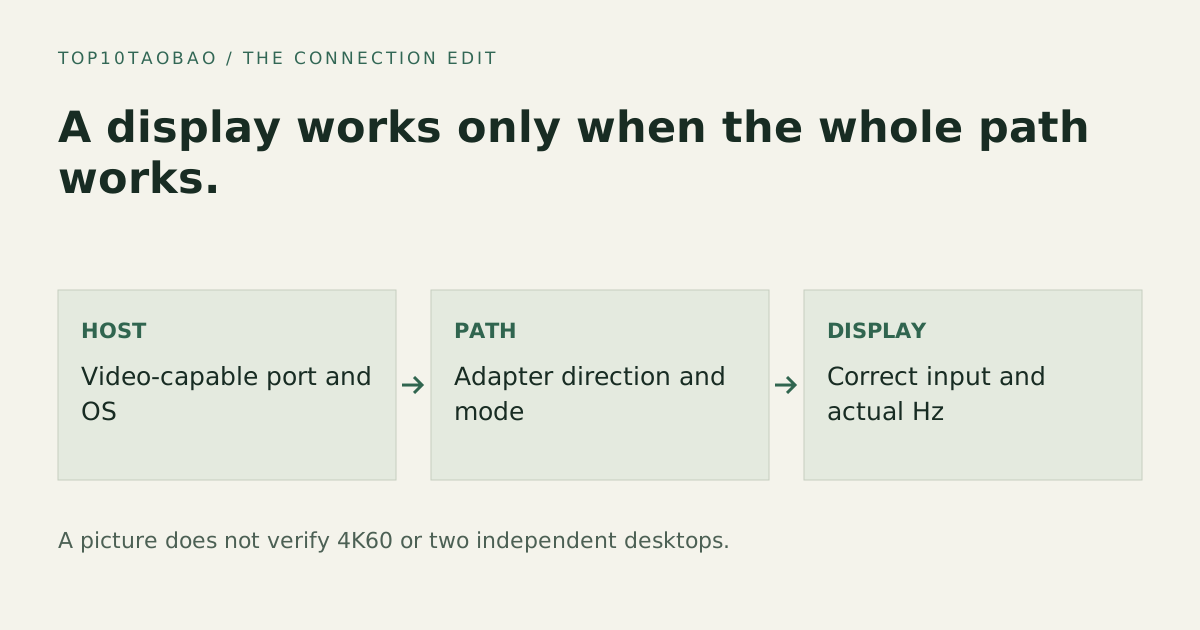
An HDMI socket on a hub cannot create a native display signal that the laptop’s USB-C port does not supply. Start with one display, the correct input and a documented video-capable host port. Then separate “no picture” from “wrong mode” and “second screen missing.”
By Top10Taobao Editorial · Sources checked November 4, 2026
Original explanatory diagram; the checks are described in the text below. Open the diagram for a larger view.
Write down the connection in its actual direction
Record laptop and port → hub or adapter → display cable → monitor input. Include model numbers and the target resolution/refresh rate. A cable advertised for USB-C source to HDMI display should not be assumed to operate from an HDMI source into a USB-C monitor. Check the conversion direction in the exact adapter documentation.
VESA describes DisplayPort Alt Mode over USB-C as a way to carry display signals through the connector. The connector shape alone does not establish that the host implements the necessary output. A USB-C data or PD-input socket on a hub is not automatically a downstream display output.
Get one supported screen working first
Connect the display to its required power and select the input connected to the cable.
Check the laptop manual for video support on this exact port and the adapter manual for the required mode.
Remove the dock for a direct comparison where the laptop has a suitable video output or compatible adapter.
Compare a known compatible cable or input without changing the rest of the path.
If the simple supported path still fails, use the host/display maker’s diagnostics before blaming the hub.
A direct HDMI connection working confirms that particular source/cable/input path. It does not prove that another USB-C port supplies DisplayPort Alt Mode. Keep the successful and failed paths in your notes.
Use the symptom to choose the next check
Different symptoms need different checks
What you see
Check next
Avoid this conclusion
No image on one screen
Power, selected input, host output, conversion direction and cable
“The charger works, so video must work”
Image but 30Hz instead of 60Hz
Actual OS setting and the complete path’s documented simultaneous mode
“4K” alone promises the target refresh rate
Two screens show the same image
Mirror/extend setting and the dock’s OS-specific display method
Two sockets always mean two independent desktops
One screen works, the second is absent
Exact host active-display limit and dock simultaneous-display table
A splitter increases the GPU’s supported display count
In Windows, open the display settings and check the projection mode; Windows + P offers an Extend option for a supported configuration. Use Microsoft’s external-display guide to distinguish one-screen and multiple-screen problems. Start from the display’s supported mode rather than forcing an unverified custom timing.
A DisplayLink dock also needs its supported software path and permissions. Confirm that requirement with the vendor and your administrator. It is not a general driver that turns every unsupported USB-C hub into a multi-display solution.
If the desktop works but protected video is black
Treat that as a separate symptom from a blank desktop. DisplayLink documents protected-content restrictions on macOS while its screens are connected. A successful desktop image does not validate every streaming service or content-protection path. Check the software vendor’s current scope and the service’s requirements before purchasing for that use.
Do not disable security controls or install unofficial display drivers to force a result. If protected playback is essential, compare a documented native display path for the exact host and screen.
Confirm the arrangement you actually intended
After a change, record the selected resolution and refresh rate, how many independent desktops appear and whether the built-in screen remains active. Check each display in settings; a picture alone is not acceptance of a 4K60 or dual-extended requirement.
If only USB or network devices fail while the screen works, switch to the general dock guide. If the host cannot support the desired path, return to the port-support checklist before buying another adapter. Keep the working configuration and the specific failure notes for vendor support.
Published specifications and standards explain possible capabilities. They do not verify a complete combination of your computer, cable, adapter and peripheral. No physical product test is claimed.