BUYING GUIDE / CONNECTION NOTES
Thunderbolt 3 vs 4 vs 5: Decide What to Upgrade
Thunderbolt 3 and 4 both offer links up to 40Gbps; moving from 3 to 4 is not a doubling of that headline. Thunderbolt 5 raises link capability, but a faster dock cannot upgrade the port inside an older computer. Start with the bottleneck or feature you need to change.
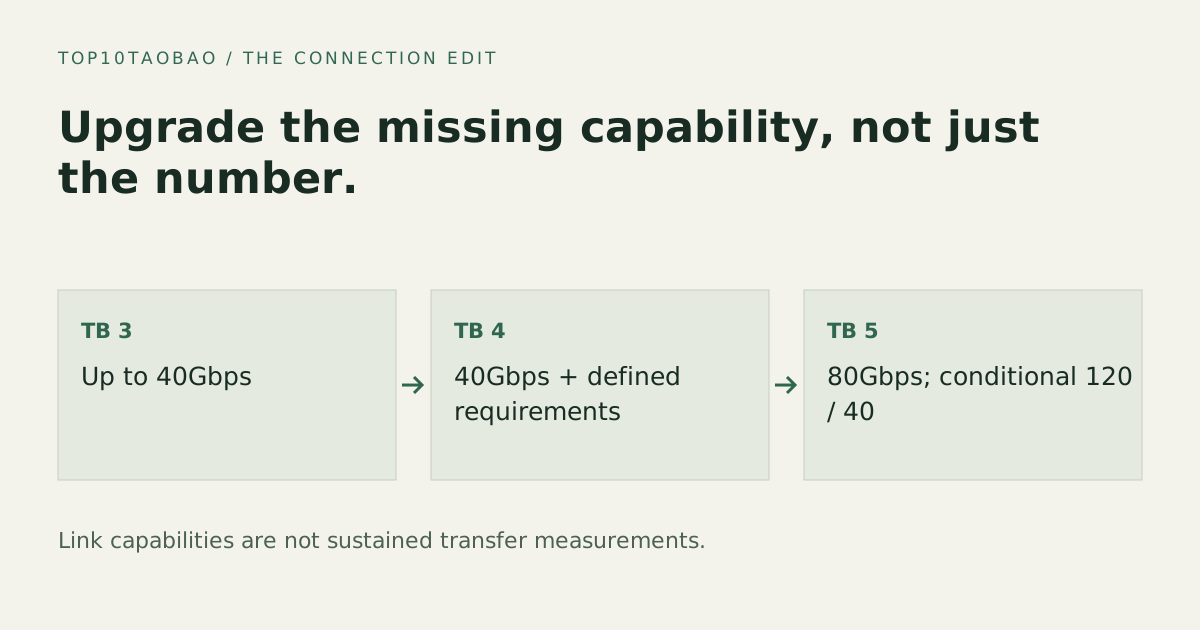
What the generation number changes
| Generation | Link headline | Why a buyer still checks the exact product |
|---|---|---|
| Thunderbolt 3 | Up to 40Gbps | Host implementation, cable and available display/PCIe capabilities vary |
| Thunderbolt 4 | 40Gbps; stronger defined PC certification requirements | Port layout, host charging and actual Mac/PC display support remain model-specific |
| Thunderbolt 5 | 80Gbps bidirectional; conditional 120/40Gbps Bandwidth Boost | Requires appropriate host/accessory/cable support; the boost is directional |
Intel’s original Thunderbolt 4 announcement raised minimum PC video and PCIe requirements without raising the 40Gbps link headline. It cited PCIe at 32Gbps and support for two 4K screens or one 8K screen. Those certification statements are not a guarantee that any Mac or any dock outputs your desired screens at every mode.
120Gbps is not 120Gbps in both directions
Intel’s Thunderbolt 5 technology brief distinguishes an 80Gbps link in each direction from Bandwidth Boost. When high display traffic requires it, the link can allocate 120Gbps in one direction and 40Gbps in the other. Do not add the directions or turn the display-oriented headline into a 120Gbps SSD-copy claim.
The mode your setup can use still depends on the host, accessory, cable and workload. Drive performance, protocol overhead and shared display traffic remain relevant even when every component supports the newer link.
Choose the part that changes your actual limitation
| Current limitation | Investigate first | Why a new dock alone may not fix it |
|---|---|---|
| Not enough useful sockets | A compatible dock with the needed port layout | An extra socket can still share upstream capacity |
| Insufficient laptop charging | Net host output and included supply, under occupied-port load | The generation number does not establish output watts |
| Missing independent screen | Exact host display limits and the dock’s display method | Host graphics/OS limits remain |
| Storage link is too slow | Host link, cable, enclosure fallback and the actual workload | A 40Gbps host remains the older endpoint |
For example, replacing a Thunderbolt 3 dock with a Thunderbolt 4 dock may solve a port-layout or documented compatibility need. It is not evidence of twice the file speed. A Thunderbolt 5 dock on an older supported host should be evaluated by its documented fallback, not by the dock’s fastest headline.
Backward compatibility needs a supported path
Check the dock maker’s host compatibility list, including older Thunderbolt and USB-C-only modes. Some functions may require a particular protocol or OS; an adapter or cable can also change which functions are available. “The plug fits” is insufficient for an older Thunderbolt device or a non-Thunderbolt host.
Use the cable supplied for the documented configuration or a replacement whose generation, rate, length and power capability are explicitly suitable. For broader USB4 naming questions, use USB4 versus Thunderbolt.
Two decisions that do not need a universal winner
A working one-monitor office desk: keep the arrangement if the display, devices and host charging already meet the task. A newer number is not a demonstrated benefit. A different dock is worth comparing when it removes a named adapter or supports a documented additional requirement.
A supported high-bandwidth display and storage desk: first identify the host’s newer interface and simultaneous display modes. Then compare the dock and cables against that host. Only a complete supported path can use the capability; original source specifications still do not replace a sustained-workload measurement.
Keep a before-and-after requirement sheet
- Write the current working arrangement and the one missing capability.
- Record exact host and OS support, including the built-in screen where relevant.
- Compare included power supply, host output, downstream ports and cable.
- Confirm the required fallback on any second computer.
- After installation, check actual selected screen modes and the devices you use together.
Use the desk inventory, multi-monitor check and data-rate guide to keep each requirement separate.
For a current 40Gbps-class desk, use the powered dock comparison. Keep the exact host and required task in the decision.
Sources & scope
Published specifications and standards explain possible capabilities. They do not verify a complete combination of your computer, cable, adapter and peripheral. No physical product test is claimed.