BUYING GUIDE / CONNECTION NOTES
USB4 vs Thunderbolt 4: Check Your Actual Setup
USB4 and Thunderbolt 4 can use the same USB-C connector, but a connector does not settle the data rate, display arrangement or charging output. Compare the exact host port, accessory and cable. Thunderbolt certification adds defined requirements; “USB4” still needs its performance and product details.
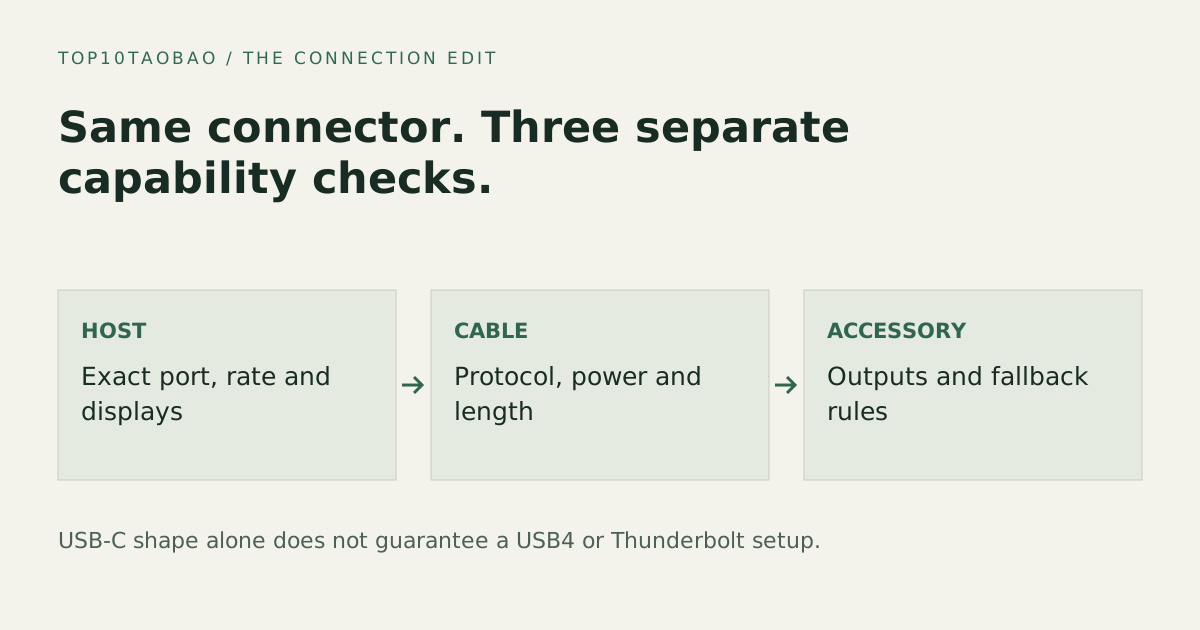
Separate the connector, architecture and product promise
USB-C describes the connector system. USB4 describes a data architecture that can share a link between data and display traffic. Thunderbolt is a certified connectivity platform built on related technologies. USB-IF explains the USB4 shared-link architecture; Intel publishes the Thunderbolt comparison requirements.
Treat an accessory title as an entry point to its technical table. “USB-C dock,” “USB4 dock” and “Thunderbolt dock” do not tell you whether a charger is included, how many screens extend on your OS or which downstream sockets can carry video. Those are separate product-level questions.
Ask these questions before comparing price
| Question | USB4 product | Thunderbolt 4 product |
|---|---|---|
| What rate is this exact port/cable rated for? | Read the explicit performance class; USB4 is not shorthand for one rate | 40Gbps Thunderbolt link capability; still check the complete path |
| Does an older Thunderbolt accessory work? | Require a documented compatibility/fallback statement | Check the exact older device and any adapter conditions |
| How many displays extend on this host? | Read host, OS and simultaneous-mode support | Certification does not replace the exact computer’s display limits |
| Will this charge the laptop? | Read the accessory’s host output and laptop requirement | Read host output, included supply and cable; do not infer watts from the name |
The current USB4 family includes products at different rates, including 80Gbps-class implementations. Do not reuse an old “USB4 always tops out at 40Gbps” chart. USB-IF’s naming guidance calls for explicit capability language. An older 20/40Gbps accessory does not gain a faster link through a label change.
The useful capability is the one the whole path shares
Suppose a USB4 enclosure is connected through a 10Gbps USB hub. The enclosure’s own headline does not establish a USB4 path through that hub. First confirm whether the enclosure supports an appropriate USB fallback. Then compare the link that the host, hub, cable and enclosure can all use. A supported slower mode and an unsupported connection are different results.
Likewise, storage bandwidth and display traffic are not independent promises simply because they have separate sockets. The upstream link and the dock’s internal design matter. A data rate is not a sustained file-copy result; use the bottleneck guide for that distinction.
Make displays and power their own decisions
For screens, record the exact processor/host, OS, display method and simultaneous resolution/refresh rates. Native DisplayPort, Thunderbolt display tunneling and a DisplayLink software path are not interchangeable. A dock with several outputs may still have OS-specific extended-display restrictions.
For charging, identify the wall supply, the dock’s net host output and the laptop’s accepted power profile. The interface name is not a wattage. Keep those records beside the display worksheet and power worksheet rather than combining them into one “compatible” tick.
When each choice is coherent
A documented USB4 combination can be a good fit when it provides the displays, storage path and charging you need. A Thunderbolt 4 combination can be useful when its certified capabilities and a clearly documented accessory ecosystem simplify your requirements. Neither is automatically the better purchase for a mouse, one modest screen or a host that lacks the required functions.
If you already own a working Thunderbolt 3 or 4 arrangement, identify what is missing before upgrading. The Thunderbolt generation guide separates higher link capability from a new port layout or power supply.
A five-line compatibility record
- Host: exact model, specific port, OS and supported external displays.
- Accessory: exact model/revision and required host features.
- Cable: supported protocol/rate and necessary power rating, at the length being bought.
- Outputs: simultaneous screen modes, downstream storage/network links and host charging.
- Fallback: the maker’s stated behavior on each older host you plan to use.
Microsoft’s USB4 notification guidance also points to host support, an appropriate cable and direct connection. A missing feature is a reason to check the documented path, not to assume every USB-C socket can be enabled in software.
Apply these protocol checks to named Thunderbolt and USB4 dock arrangements. Keep the exact host and required task in the decision.
Sources & scope
Published specifications and standards explain possible capabilities. They do not verify a complete combination of your computer, cable, adapter and peripheral. No physical product test is claimed.