BUYING GUIDE / CONNECTION NOTES
USB-C Hubs for iPad: Check Three Workflows
An iPad hub is useful only when it supplies the connections your exact tablet and apps can use. Start with the job: importing cards, working from external storage, or connecting a display while charging. A USB-C plug and several sockets do not establish the iPad’s data rate, an extended workspace or enough power for every peripheral.
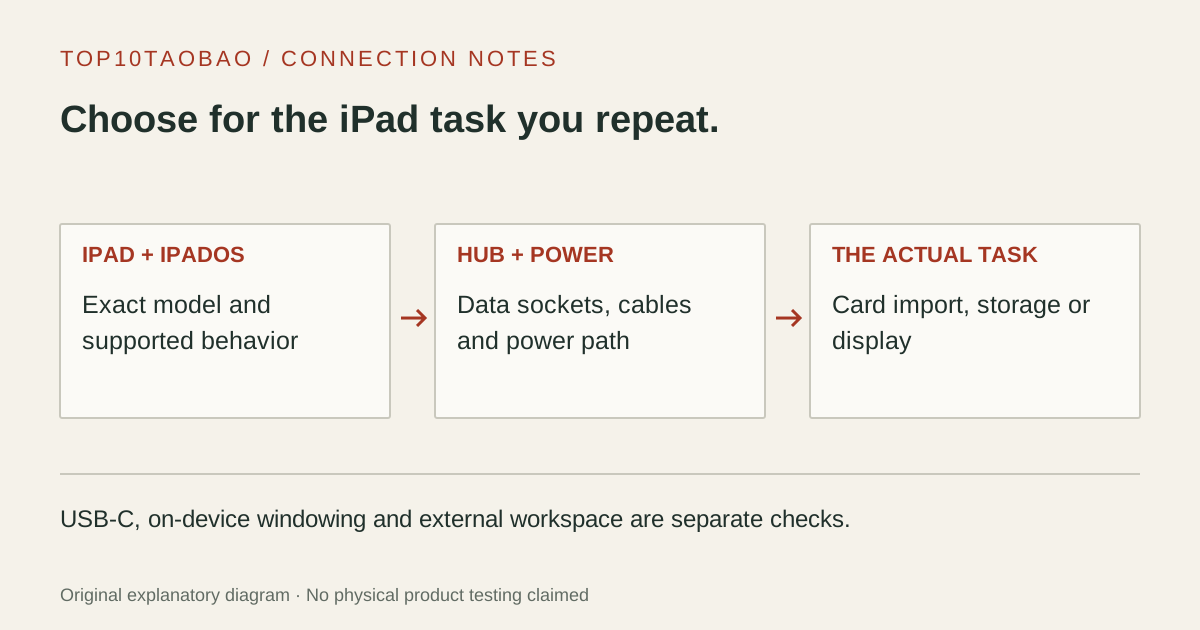
Find the exact iPad before comparing hub specifications
Use Settings to identify the model and installed iPadOS version, then read that model’s port specification. A USB-C iPad can have a different USB data interface from another USB-C iPad. Apple’s connection guide describes supported accessory categories, but it is not a promise that every hub implements every category on every tablet.
| Example model | Apple’s documented port capability | Buying implication |
|---|---|---|
| iPad A16 | USB 2.0 up to 480Mb/s, plus DisplayPort | A faster USB hub does not upgrade this USB data link |
| iPad Air 11-inch M3 | USB 3 up to 10Gb/s, plus DisplayPort | Check the hub, cable and storage device as the rest of the path |
| iPad Pro 11-inch M5 | Thunderbolt 3 / USB4 up to 40Gb/s | A Thunderbolt storage task still requires a compatible dock and cable |
These are interface capabilities, not our file-copy measurements. They also do not settle display behavior or power. If your iPad has Lightning instead of USB-C, stop here and use the appropriate Apple adapter guidance; a passive change of plug is not the same connection plan.
For photo imports, choose the card path before extra ports
List the card types you actually import: full-size SD, microSD, or two cards in the same session. Confirm the slot’s UHS support and whether concurrent use is explicitly documented. A hub marked “SD/TF” can describe two physical openings without establishing two simultaneous transfers or the same bus support for both slots.
One card may not need a hub at all. Apple’s USB-C to SD Card Reader has a documented USB-C iPad compatibility list and UHS-II SD support. If you also need charging, the question changes to whether a suitable powered hub or dock provides the supported reader connection and power arrangement. Do not assume that a reader’s compatibility validates every intervening hub.
Files access and Photos import are separate app checks. Keep the source card until the expected files can be opened and a second copy is preserved. A connected reader or activity light does not verify a completed backup. Compare the dedicated reader arrangements and the UHS interface guide if the card workflow is the only reason to add accessories.
For an SSD or hard drive, check Files and power separately
Apple’s external-storage guide requires one data partition and a supported format. Its listed formats include APFS, encrypted APFS, HFS+, exFAT, FAT32 and FAT. An existing drive should be checked against that list before you change anything; a format or initialization prompt is not permission to erase it.
The physical route needs a data-capable USB port, not only a PD charging input. Record iPad → hub data socket → cable → drive, and identify whether the drive is USB storage or requires a Thunderbolt path. A hub’s charging socket cannot be assumed to host an SSD. Use the enclosure fit checklist if the storage device is being assembled from an existing SSD.
Apple notes that external hard drives often need an external power source. Its guide describes a powered USB hub for appropriate Thunderbolt/USB4 iPads when a drive lacks its own supply. That is a reason to verify the supported power arrangement, not a guarantee that any charger and hub will power every drive. Copy speed remains constrained by the tablet, hub, drive and task.
For a display, distinguish mirroring from an extended workspace
Write down the behavior you need: a mirrored screen, an app-specific second-screen view, or separate app windows on an extended display. Apple treats these as different uses in its USB-C display guidance. A picture appearing on the monitor proves a video connection; it does not prove the extended workspace you intended.
The Stage Manager support article has separate model lists for using Stage Manager on the iPad and moving apps/windows to an external display. Being able to enable windowing is therefore not enough evidence of external-workspace support. Match the installed iPadOS version and exact model to Apple’s current guide rather than extending a laptop dock’s Windows or Mac claim to iPadOS.
Then match the monitor input, adapter direction, supported resolution and refresh rate. Apple’s cabled-display guide explains the connection choices. A hub with two HDMI sockets is not evidence of two independent external iPad desktops. A “4K” label without a supported refresh rate and host condition also leaves the actual mode unresolved.
Put charging, peripheral power and physical fit on the same list
For a hub with PD input, trace wall supply → charging cable → hub → iPad. Then trace the separate data path to each peripheral. The maximum input printed on a hub is not a measured charging rate at the iPad, and a high-wattage supply does not force the tablet to draw that amount. The supported profiles and the hub’s own requirements still matter.
Count the accessories used together. A reader plus an externally powered drive is a different power arrangement from a reader plus a bus-powered drive. Keep a drive’s own specified supply when the manufacturer requires one. The hub power guide and charging-profile worksheet explain those independent questions.
Also check the cable reach and connector clearance with the case and keyboard attached. A short fixed cable can determine where the hub rests and whether another connector is obstructed. Support the accessories without using the tablet’s socket as a lever. Outer dimensions and port count are not evidence of tested fit with your particular case.
Build one complete connection plan for the task
| Task | Required evidence | Often unnecessary assumption |
|---|---|---|
| One camera SD card | Exact reader/iPad support, card interface and import app | A ten-port dock is needed for a single card |
| SSD while charging | Data-capable port, supported drive/format, power and Files path | The hub’s PD-input socket is also a storage port |
| Monitor plus keyboard and charging | iPadOS display behavior, monitor mode, input-device and power support | Two display sockets guarantee two independent desktops |
For example, the iPad A16’s 480Mb/s USB ceiling is relevant to a large card import even when a hub advertises a much faster data interface. It does not remove that model’s separate DisplayPort capability. Conversely, an iPad Pro’s faster interface does not make a charge-only cable suitable for a Thunderbolt storage job. Keep each requirement tied to its own path.
Start with the portable USB-C hub comparison for candidate layouts and the powered desk-dock comparison for a fixed desk. Those lists are manufacturer research, not our certification of a complete iPad combination. A documented layout is a candidate to check against the exact tablet and app.
Keep a short compatibility record before ordering
- iPad: exact model, port capability and installed iPadOS.
- Task: card import, external-drive files, mirrored video or an extended workspace.
- Hub/reader: exact model, required data sockets, slot interfaces and documented iPad support.
- Power and cables: supply/profile, data/video capability, reach and case clearance.
- Unresolved condition: the exact question to confirm with the maker before purchase.
For a connected display that remains dark, continue with the display failure checks. For a missing drive, first revisit the supported data, format and power path while preserving the original contents. The purpose is to identify the missing condition, not to substitute a different accessory at random.
Sources & scope
Published specifications and standards explain possible capabilities. They do not verify a complete combination of your computer, cable, adapter and peripheral. No physical product test is claimed.
- Apple: USB-C iPad accessories, displays and power
- Apple: iPad A16 port and display specifications
- Apple: iPad Air 11-inch M3 port and display specifications
- Apple: iPad Pro 11-inch M5 port specification
- Apple: external storage, filesystems and power on iPad
- Apple: separate Stage Manager and external-display model lists
- Apple: connect an iPad to a cabled display
- Apple MW653AM/A: USB-C to SD Card Reader