HDMI and VGA Adapters: Choose the Correct Direction
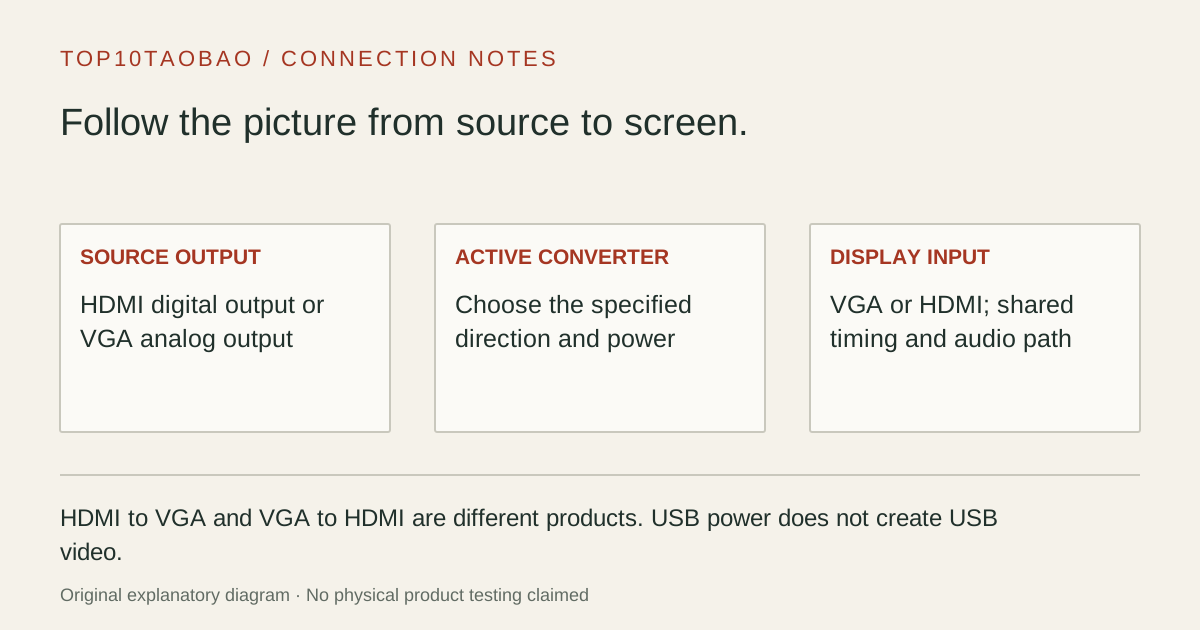
Choose the direction from the device sending the picture to the screen receiving it. An HDMI laptop feeding a VGA projector needs a different converter from a VGA computer feeding an HDMI monitor.
By Top10Taobao Editorial · Sources checked November 6, 2026 · US edition
01 / CHECK THE COMPLETE SETUP
Start with the requirement.
Identify the source output and display input, then record the supported timing and required audio route. These active conversion arrangements work in their specified direction; reversing the cable ends does not reverse the conversion.
Do not substitute a similar product name or a different regional package. The sources linked under each entry support the named model and its stated conditions.
Original explanatory diagram; not a product photograph or tested wiring configuration.
02 / THE COMPARISON
Read the limit beside the headline.
Scroll the table horizontally on a small screen. Limits are manufacturer claims, not measurements. Ask the maker about a condition that is decisive and still unknown.
Exact models and documented restrictions; prices and live stock omitted
Choose one of the HDMI-source models. Bring a supported VGA cable and establish the projector timing. If sound is needed, plan a separate audio route rather than expecting the VGA cable to carry it.
An older VGA desktop and a new HDMI monitor
Choose one of the VGA-source models and connect its USB lead. That USB connection supplies converter power and, on the documented platform, audio; the picture still comes from the VGA output.
A cable was ordered in the wrong direction
Check the source and screen labels before purchasing another cable. An additional gender changer does not change analog-to-digital conversion into digital-to-analog conversion. The active converter must match the required direction.
05 / EVIDENCE & SCOPE
What the comparison establishes.
The four models cover two directions, with two documented arrangements for each. They are not ranked for image quality, sharpness, delay or reliability; we have not measured those properties. No adapter upgrades the resolution of a VGA source or guarantees compatibility with every projector timing. VGA video does not carry an HDMI audio channel. Keep USB power, USB audio and USB graphics data as separate functions.
Each entry has an original fit explanation, an exclusion and an alternative. We selected the models for distinct documented arrangements rather than copying another publication's order. Unknown fields are not filled by estimates, and manufacturer marketing measurements are not relabeled as independent tests.
Write the two endpoints before reading the product title
Direction is the first filter
Sending device
Receiving screen
Required converter
Computer HDMI output
Projector or monitor VGA input
HDMI → VGA
Computer VGA output
Monitor or TV HDMI input
VGA → HDMI
Computer USB data port only
HDMI monitor
A supported USB graphics adapter, not either VGA converter
DisplayPort output
HDMI monitor
A suitable DP → HDMI arrangement, not a VGA conversion chain
This direction follows the picture, not the order of connector names in a marketplace title. Some source descriptions use the names loosely; use the explicit input/output roles and the exact product manual. A passive cable-shaped item should not be assumed to perform active analog/digital conversion.
If the mismatch is digital DP versus HDMI, compare DP-to-HDMI or HDMI-to-DP by the actual direction. Avoid adding VGA in the middle when the devices already offer a suitable direct digital route.
A USB lead can power the converter without creating the picture
On the two VGA-source models, video enters through VGA. The USB lead powers the converter and provides the documented USB audio function. Plugging in USB without a working VGA source is not a substitute for a USB graphics adapter.
On the HDMI-source side, Cable Matters 113046 offers optional USB power for sources that need it. This is a power input, not a capture or graphics data connection. HD2VGAE2 instead documents operation without an external supply and excludes a specific Chromebook application.
The HDMI-to-VGA models here do not provide audio output. Use a separately supported computer audio output or interface if the room needs sound. A VGA socket does not preserve an HDMI audio stream simply because the picture displays.
For the opposite direction, 103070-BLACK embeds computer USB audio into HDMI and documents selecting the USB audio device in Windows. VGA2HDU also ties its native USB audio guidance to Windows and specifies output-equipment volume control. Do not generalize the video path’s OS independence into universal USB audio support.
Check that the HDMI monitor has the audio output or speakers you intend to use. If the goal is a separate analog headset on the computer, a USB audio adapter is a different, potentially more direct audio route.
Use a supported shared timing and a short connection check
Confirm the computer output and screen input using their exact manuals.
Choose a supported timing shared by source, converter and screen; begin conservatively.
Connect in the documented direction and supply converter power where required.
Select the correct screen input and verify a normal desktop or presentation.
Check audio separately, then confirm text size and any projector scaling setting.
The listed 1080p ceiling is not a promise that every source or screen accepts that timing. A monitor’s native resolution and its accepted input timings can differ. Conversion also does not create extra detail in the source picture. We have not compared sharpness or measured scaling quality among these four models.
For a blank picture, check direction, power and shared timing before adding more adapters. Cable Matters explicitly excludes HDCP support for 113046, so a working desktop and unavailable protected playback need not have the same cause. Keep content requirements within the documented path.
Your final order should identify the exact model, source-to-screen direction, needed VGA/HDMI cables, power connection and audio arrangement. This combined page covers both directions so the decision stays in one place.