USB 3.0 to HDMI Adapters: Add Office Displays Through USB-A
A USB 3.0 graphics adapter sends display data over a USB connection using software such as DisplayLink. It can serve a computer without a spare native video output, but it has different requirements from a USB-C video cable.
By Top10Taobao Editorial · Sources checked November 6, 2026 · US edition
01 / CHECK THE COMPLETE SETUP
Start with the requirement.
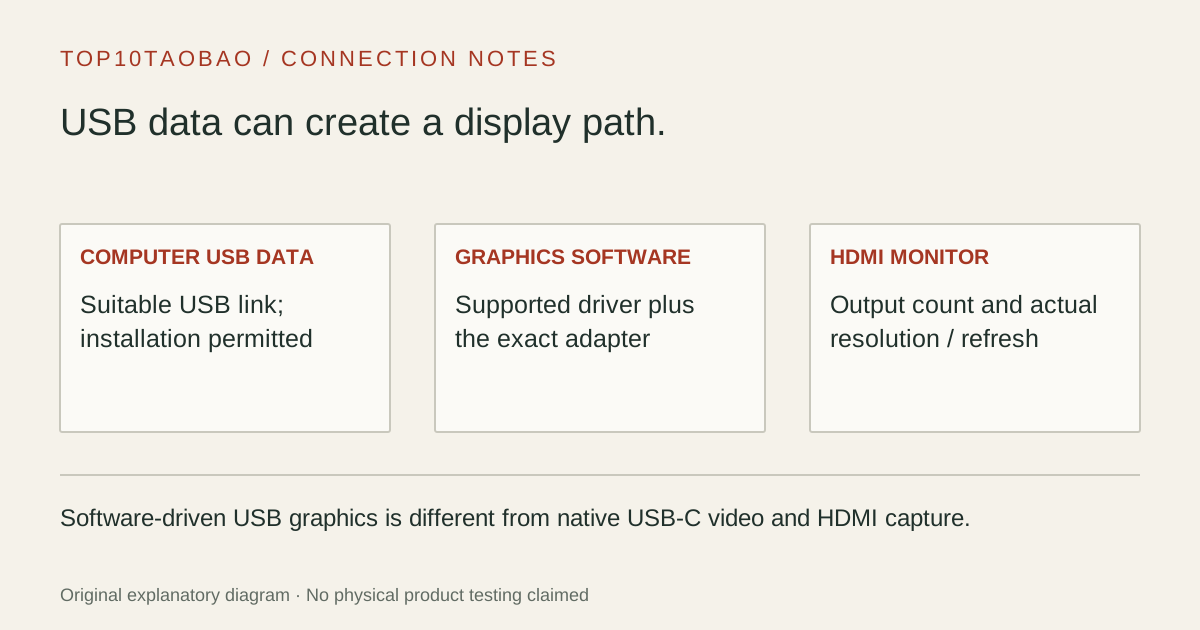
Specify one or two independent displays, the required resolution and refresh rate, the computer OS and permission to use the required software. Confirm an appropriate USB data port; a USB-A connector does not provide native DisplayPort Alt Mode.
Do not substitute a similar product name or a different regional package. The sources linked under each entry support the named model and its stated conditions.
Original explanatory diagram; not a product photograph or tested wiring configuration.
02 / THE COMPARISON
Read the limit beside the headline.
Scroll the table horizontally on a small screen. Limits are manufacturer claims, not measurements. Ask the maker about a condition that is decisive and still unknown.
Exact models and documented restrictions; prices and live stock omitted
Start with the actual monitor timing. If 4K30 is too low for your requirement, the one-output model does not become a 4K60 adapter by using a faster USB port. Compare a documented higher-mode arrangement.
Two screens with different documents
Select a supported extended-desktop arrangement and configure Extend in the OS. A simple HDMI splitter duplicates a source signal; its two sockets do not establish two independent desktops.
A managed work computer
Check installation and permissions with the administrator before buying. Automatic driver delivery still depends on software policy and the OS. A model described as convenient to install is not a promise that a locked-down machine permits it.
05 / EVIDENCE & SCOPE
What the comparison establishes.
These two documented Plugable arrangements answer single-display and dual-display office tasks. Selection does not rank brands or claim measured smoothness. We have not tested latency, compression, host load, sleep recovery or complete-device compatibility. DisplayLink software availability is not a blanket guarantee for every adapter or operating system; follow the exact product recommendation. Neither model is a capture card, a laptop charger or a general substitute for a native gaming GPU output.
Each entry has an original fit explanation, an exclusion and an alternative. We selected the models for distinct documented arrangements rather than copying another publication's order. Unknown fields are not filled by estimates, and manufacturer marketing measurements are not relabeled as independent tests.
Write the requirement as “two extended HDMI displays at 3840×2160, 60Hz” or “one extra 1080p office screen.” That is more useful than “dual monitor” or “4K.” Connect the monitor to the adapter’s output and check the mode that the operating system actually selects.
The UGA-4KHDMI specification lists one monitor per adapter and a 4K30 ceiling. Its support for selected lower-resolution 60Hz modes should not be transferred to 4K. The USBC-6950U comparison table lists two HDMI outputs, not four independent screens.
When only duplicate pictures are needed, compare a splitter’s routing task. When USB, Ethernet, charging and several desk peripherals are needed as well, compare DisplayLink docking stations. A standalone graphics adapter is a narrower purchase.
The USB data path still depends on software
Use the current driver for the exact adapter and operating system. “Auto-installs” describes one delivery route; it does not mean the graphics adapter works without a driver. Verify the installation policy before relying on a work computer or a fresh OS release.
For a Mac, follow the specific product recommendation as well as the DisplayLink Manager requirements. The current USBC-6950U page recommends a different arrangement for macOS; generic Mac DisplayLink instructions elsewhere on the page do not cancel that product-specific guidance. We therefore keep this dual-output entry in the Windows/ChromeOS task.
Start with a direct connection to a suitable computer USB data port.
Install or confirm the official software required for the named model.
Connect one screen, choose its input and verify the selected timing.
Add the second screen only on a model and OS supporting it; select Extend if independent desktops are needed.
Check sleep, reconnect and the actual apps you use before building the final desk route.
Know when to use a different output path
A software graphics adapter is most useful when an office display task and the supported software fit together. For a gaming display, protected media or a workflow that depends on native GPU output, check the computer’s own video ports and the application requirements first. The selected products’ exclusions remain relevant even if a test desktop appears on screen.
A USB hub adds another shared data segment. The USB speed guide explains why the port, cable and shared connection all matter, without treating a link-rate number as measured graphics performance. Establish a direct working setup before adding switches or hubs.
Before ordering, confirm output count, exact timing, OS/software, installation permission, host connector and charging needs. Neither adapter replaces a separate laptop power supply. If native video is available, compare that simpler route against the software and permission requirements of USB graphics.