BUYING GUIDE / CONNECTION NOTES
USB-C Video: Check the Port Before the Hub
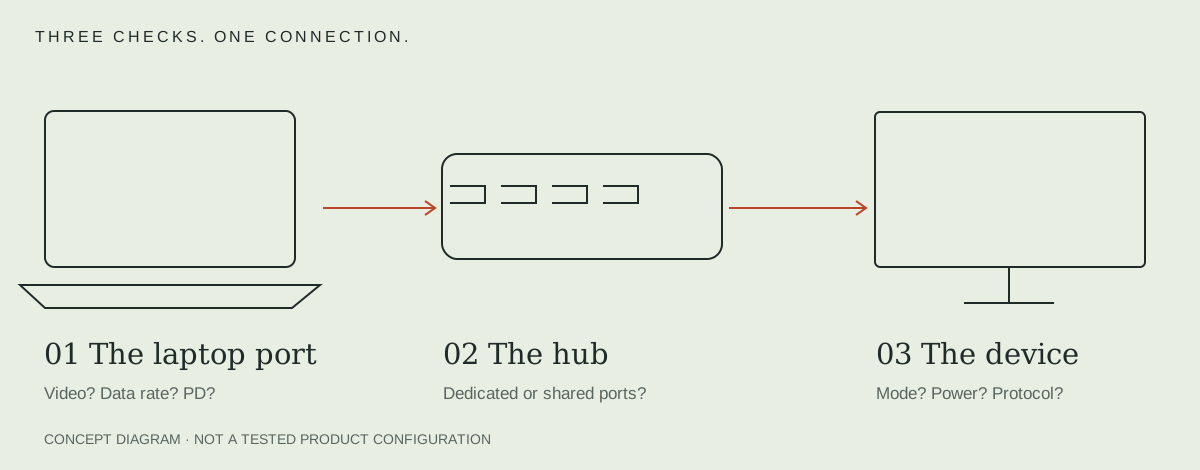
An HDMI socket on a hub does not add a video signal to a data-only laptop port. Begin with the computer, then check the whole path to the display.
Identify the computer and the specific port
Find the full model or service identifier in the computer's settings or its label. Open the manufacturer's specification or service manual. Check each USB-C port separately: adjacent sockets can have different functions. Look for explicit video support, such as DisplayPort Alt Mode or the documented display capability of a Thunderbolt/USB4 port.
A charging symbol confirms neither display output nor the USB data rate. If the documentation is unclear, ask the computer maker whether the named port supports the display mode and adapter type you plan to use.
Write the intended video path in full
Record computer port → hub model → HDMI/DisplayPort cable → monitor input. Include resolution, refresh rate and whether you need HDR or multiple independent desktops. Check the monitor's manual for the chosen input; different inputs can expose different modes.
For Anker A8383, the manufacturer manual distinguishes a DP 1.4 host for 4K 60Hz from a DP 1.2 host limited to 4K 30Hz. That is a restriction of this model's documented path, not a claim that every DP 1.2 product behaves identically.
A USB-C data socket is not a monitor output
Do not plug a USB-C display into a hub's downstream USB-C socket merely because the connectors fit. Many hubs label that socket as data-only, while another USB-C socket accepts only PD input. Check the port-level description, not just the product's total feature list.
Likewise, an HDMI-only hub is not automatically a solution for a monitor with only a USB-C video input. A passive cable cannot be assumed to reverse the conversion direction. Select a documented path for the monitor you actually have.
Use a small acceptance checklist
- Confirm the host supports the requested output on that port.
- Match the hub's exact mode and host prerequisites.
- Match the cable type, direction and rated capability.
- Verify the monitor input and its supported mode.
- After connecting, check the actual selected resolution and refresh rate in display settings.
A successful desktop image at 30Hz does not verify 60Hz. A mirrored image does not verify a second independent desktop. For more than one monitor, read the multi-monitor checklist.
Turn the host specification into a port record
| Field | What to save | What does not establish it |
|---|---|---|
| Video output | Exact model manual and named port capability | A charging or USB-C icon alone |
| Mode | Resolution, refresh, color/HDR and simultaneous displays | “4K” with no refresh rate |
| Direction | Computer output → adapter → monitor input | The same connector at both ends |
| Downstream socket | Explicit display-output support | A hub socket labeled data or PD input |
Use a manufacturer’s exact-model support page rather than an image search for similar laptops. If two ports differ, name which one the proposed adapter will occupy. Apple’s model-specific display guidance illustrates why a family name is insufficient.
Buying checks and troubleshooting answer different questions
This page establishes whether a proposed path is documented. If a supported path is already connected but blank, use the single-screen troubleshooting sequence. Do not treat a successful charge as proof that video access, Alt Mode or the correct input is working. If the issue is protocol naming, compare USB4 and Thunderbolt separately.
For an iPad rather than a laptop, use the iPad model and workflow guide. Keep the exact host and required task in the decision.
For an HDMI input, compare exact USB-C to HDMI adapter conditions.
For a DisplayPort input, compare USB-C to DisplayPort cables and adapters.
Once video output is confirmed, choose the screen input using the display-input decision guide.
Sources & scope
Published specifications and standards explain possible capabilities. They do not verify a complete combination of your computer, cable, adapter and peripheral. No physical product test is claimed.