BUYING GUIDE / CONNECTION NOTES
Docking Station Not Working? Isolate the Failed Path
Start with the part that failed: the whole dock, one USB device, wired networking or the display. Check the supplied power adapter and host cable, then compare one device directly with the same device through the dock. Change one connection at a time.
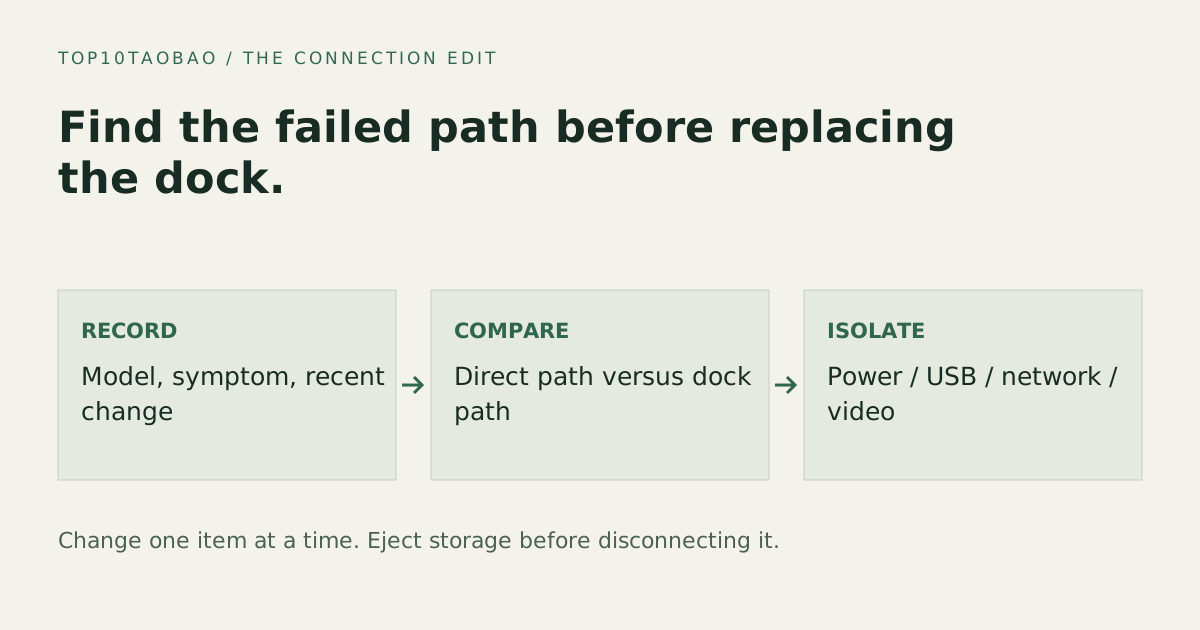
Record the failure before changing the setup
Write down the laptop model and OS version, exact dock and revision, power adapter, host cable and affected device. Note whether the arrangement has ever worked, and what changed: a cable, an update, a second drive or another charging device. A dock that never supported the host needs a compatibility decision, not a driver guessing exercise.
Save open work. Finish transfers and eject external storage before disconnecting it. If a device or connector is visibly damaged, stop using it and follow the maker’s service instructions. This guide covers connection diagnosis, not electrical repair.
Choose the branch that matches the evidence
| Symptom | First comparison | What the result narrows |
|---|---|---|
| Nothing attached is recognized | Correct dock supply and supplied host cable, directly into the supported laptop port | Power, upstream cable, port or compatibility |
| Only one USB device fails | Same device directly on a supported host port | That peripheral path versus the whole dock |
| Ethernet appears but websites fail | Known working cable/LAN port; compare another connection | Network path versus USB recognition |
| Only displays fail | One supported display without the dock | Video path; use the separate display guide |
For a display-only symptom, continue at USB-C display troubleshooting. Reinstalling a network driver cannot add a missing video signal.
Check the upstream connection and host permissions
Use the dock’s upstream port, not a downstream USB-C data socket. Check the exact laptop port in its specification; ports on one machine can differ. Use the supplied host cable or an explicitly compatible replacement. Remove additional hubs or extension adapters for the comparison.
On an Apple-silicon Mac laptop, unlock the computer and check the accessory approval prompt for your own dock. Charging can still work when data access has not been allowed. Use the normal prompt; broad changes to accessory-security settings are not required for this check.
On Windows, note the actual USB-C notification or Device Manager error. Microsoft separates power, USB4, cable and unsupported-feature causes. Record that message rather than treating every yellow icon as the same fault.
If only USB devices disconnect or fail
Test one peripheral with a known compatible cable through the dock. If it works directly but not through the dock, test another documented downstream port. If it fails directly too, the dock has not been isolated as the cause. Charge-only sockets cannot substitute for data ports.
For several devices, compare the hub’s external power arrangement and combined budget with the load. Use the powered-hub worksheet. A smaller working arrangement is useful evidence; it does not identify a faulty chip or prove a power limit without further documentation.
If Ethernet connects but the internet does not
First confirm that the OS recognizes the dock’s Ethernet adapter. Then check the network cable at both ends and the intended LAN port. Compare another known working cable or another device on the same network. Wi-Fi working does not by itself prove that this Ethernet port or cable works.
Use Microsoft’s Ethernet troubleshooting or the equivalent OS support route for the remaining symptom. Keep VPN, managed-network and authentication requirements in mind. A full network reset changes other adapters and settings; it is not the first test for a dock. Obtain drivers only from the dock, adapter or computer maker.
Use the model-specific reset or update procedure
A power-cycle sequence, firmware package or driver must match the exact dock and supported OS. Follow the maker’s procedure, including its required order, power state and connection. Do not flash firmware for a similar model or interrupt an update. On a managed work computer, involve the administrator when software or permissions are required.
If the fault remains, send support the smallest failing arrangement, the direct-versus-dock result, exact errors and what changed. That evidence is more actionable than “USB-C is broken.” Use the hub-or-dock guide only when the documented capabilities show that the current product cannot meet the task.
If the remaining task is only a wired network connection, compare the dedicated network-adapter worksheet. Keep the exact host and required task in the decision.
When a host switch is also in the path, check the complete KVM and dock signal path.
Before installing a driver, identify the native-video and USB-graphics boundaries.
When only analog headset audio is unresolved, check USB audio jack and microphone requirements.
Sources & scope
Published specifications and standards explain possible capabilities. They do not verify a complete combination of your computer, cable, adapter and peripheral. No physical product test is claimed.